


middlecut

Custom work

What we’ve built inside Business Central.

Seven builds, each made for one group of people and the job they do all day. For each one: the problem, what we built and how the job works now, with the real screens.

Every screen on this page is shown with demo data. The company names (Ridgeline Supply, Summit Ridge Equipment Rental, Cobalt Supply, Summit Supply, Kestrel Ridge), customers, people and figures are made up for the demo.

01 · Quick Actions Pro

Eight counter and warehouse jobs on one screen.

Demo: Ridgeline Supply, a trade supplier with a counter and a warehouse.

The problem and what we built

The problem

Short, repeated jobs (sell at the counter, receive a PO, move stock, pack a kit) each live on a different standard Business Central page with its own menus. Serial numbers mean a trip to Item Tracking Lines every time.

What we built

One tabbed control add-in on a Business Central page: Sale, Receive, Transfer, Receive transfer, Assemble, Kits, Create PO and BOM build. Every tab starts with a scan field and ends with one large button. The same screen runs on a phone.

How it works now

Staff learn one screen instead of eight page types. Serials are captured as they’re scanned. A sale shows cost and margin on every line before checkout, and a PO line for an item that doesn’t exist yet can be created on the spot.
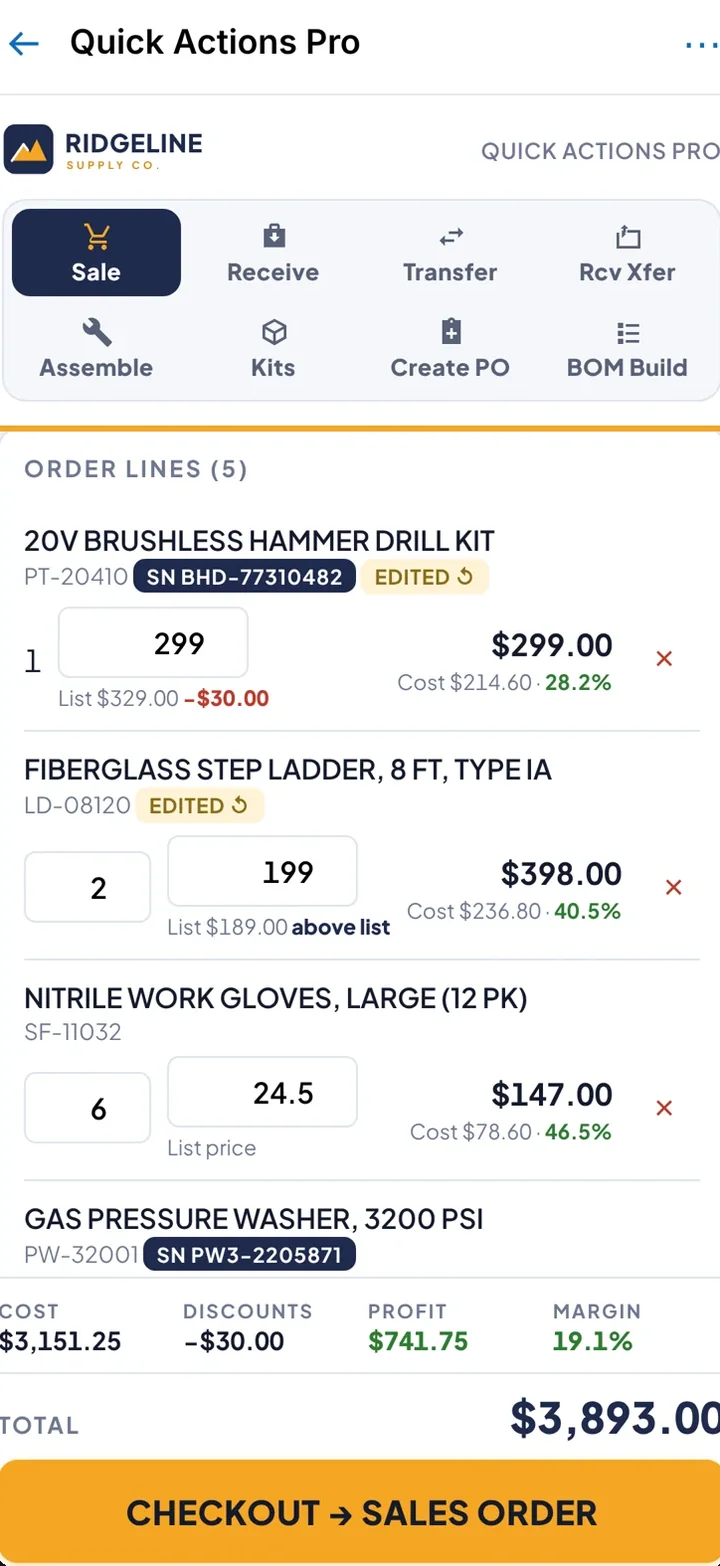
Sale tab on a phone: order lines with quantity, price and margin, order totals and a full-width Checkout to sales order button.
(opens the full screen in a new tab)
SaleMargin per line, one checkout button.
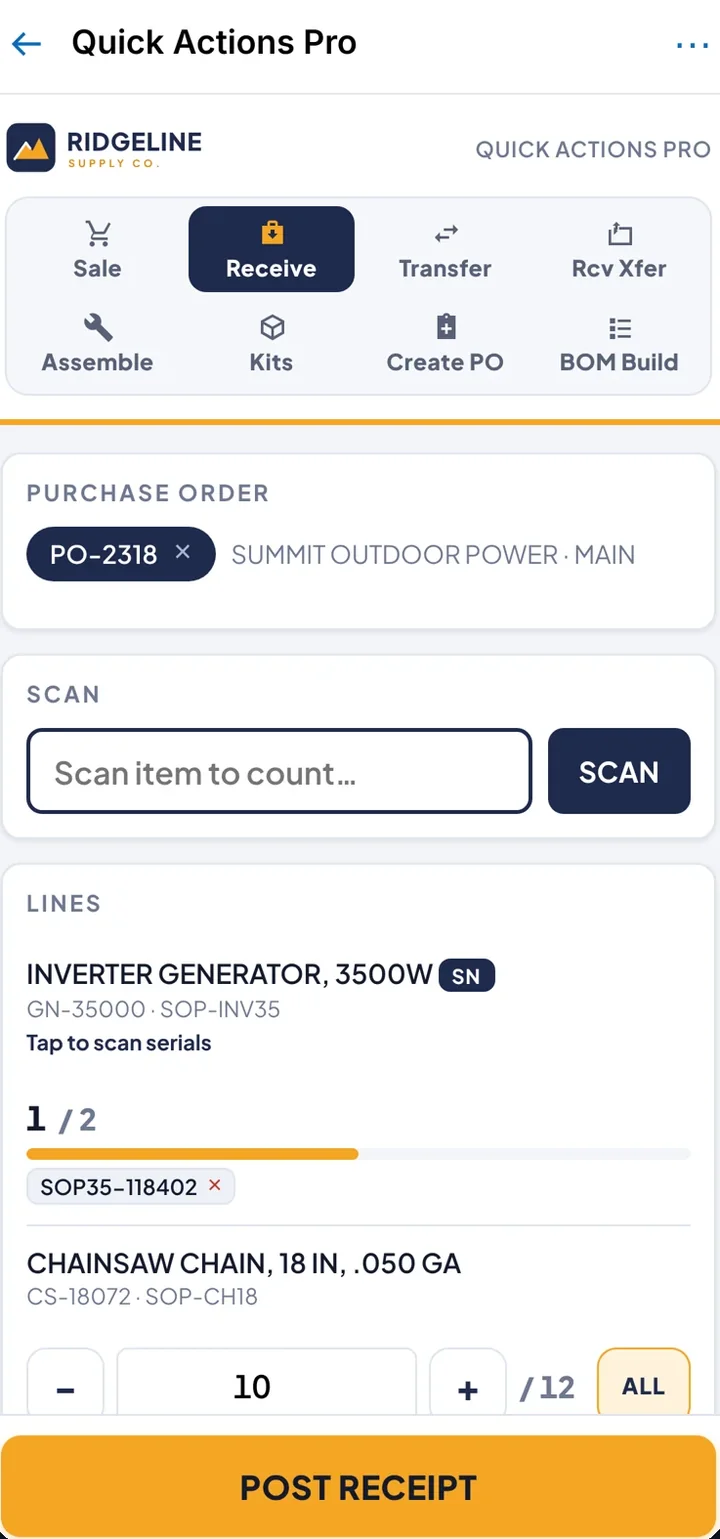
Receive tab on a phone: purchase order, scan field, progress per line and a full-width Post receipt button.
(opens the full screen in a new tab)
ReceiveScan against the PO, post the receipt.
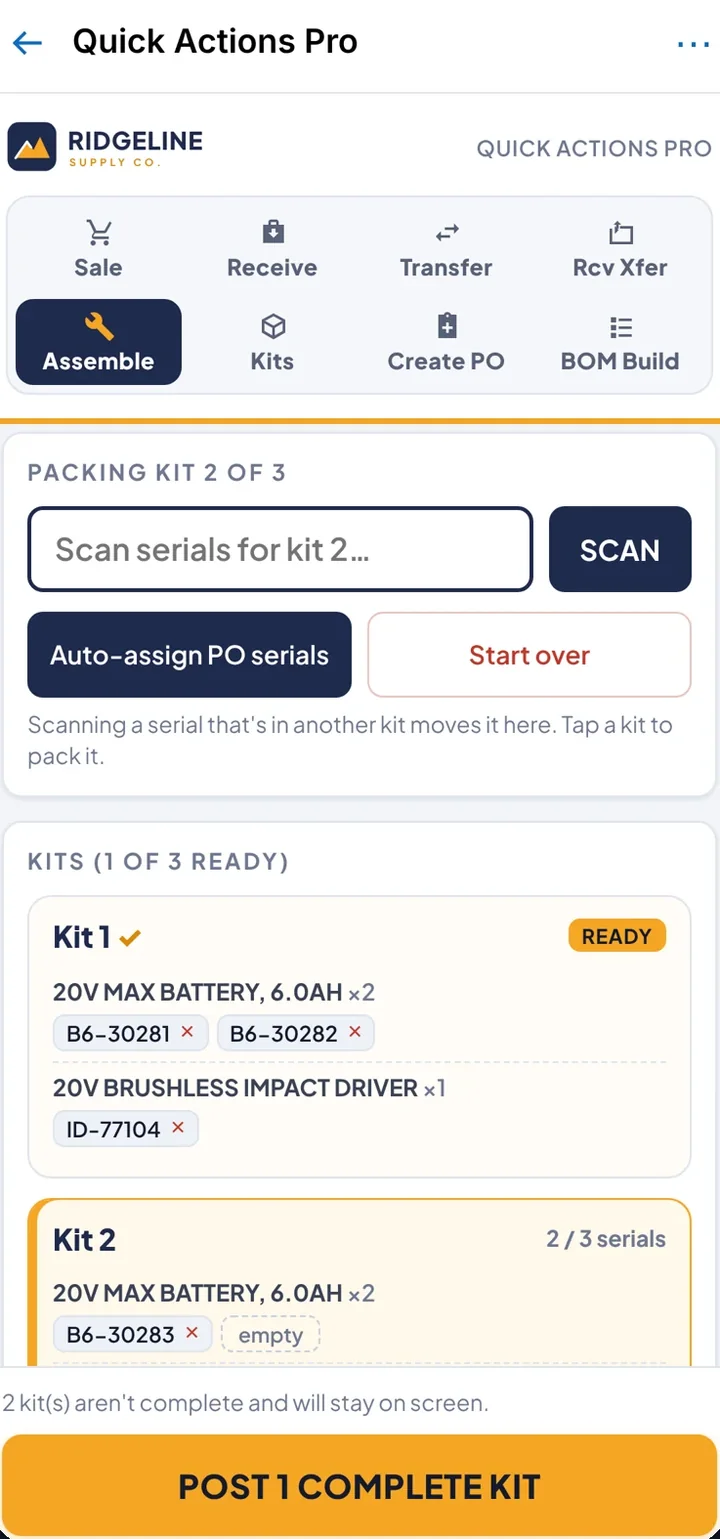
Assemble tab on a phone: scan component serials into kits and post the kits that are complete.
(opens the full screen in a new tab)
AssemblePack kits by serial.
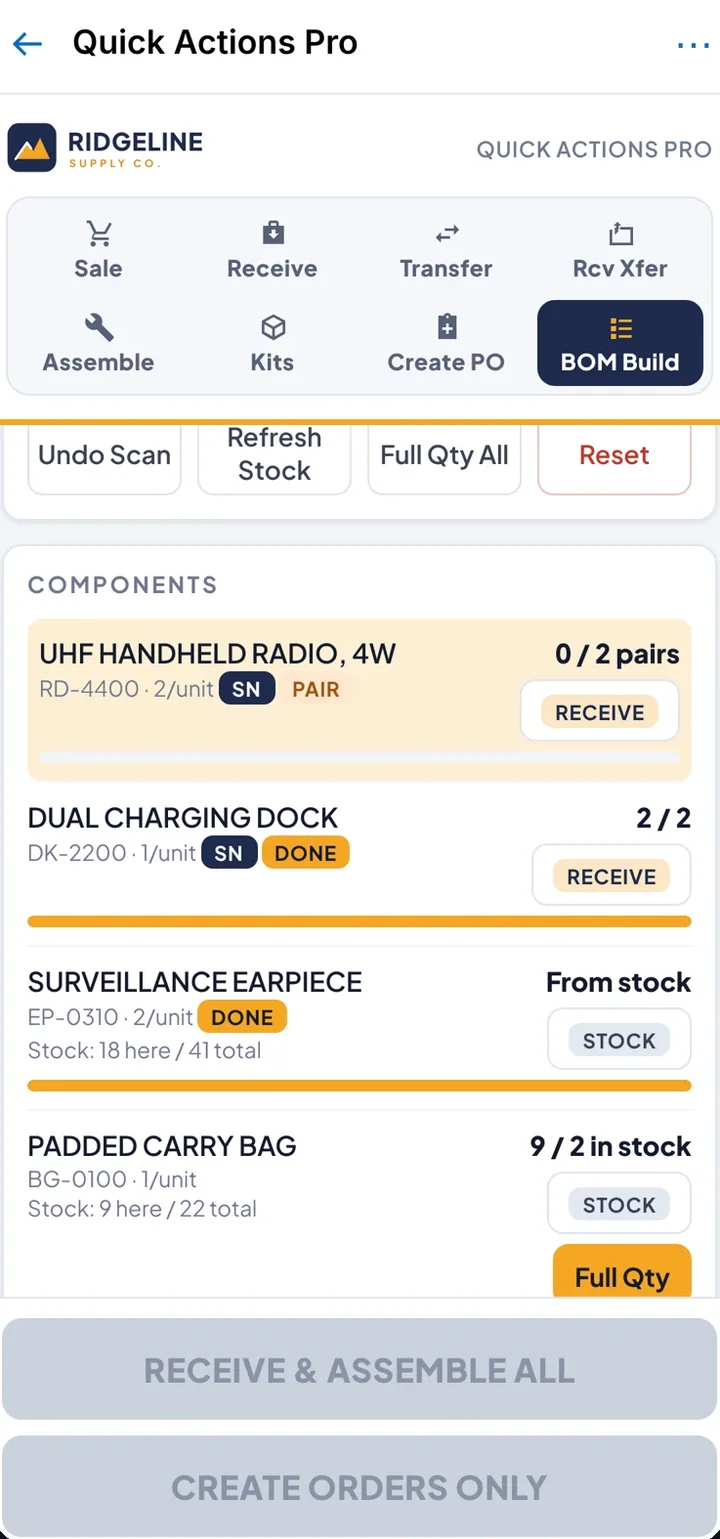
BOM build tab on a phone: each component marked receive or from stock, with one button to receive and assemble.
(opens the full screen in a new tab)
BOM buildSame tab bar, same big button.
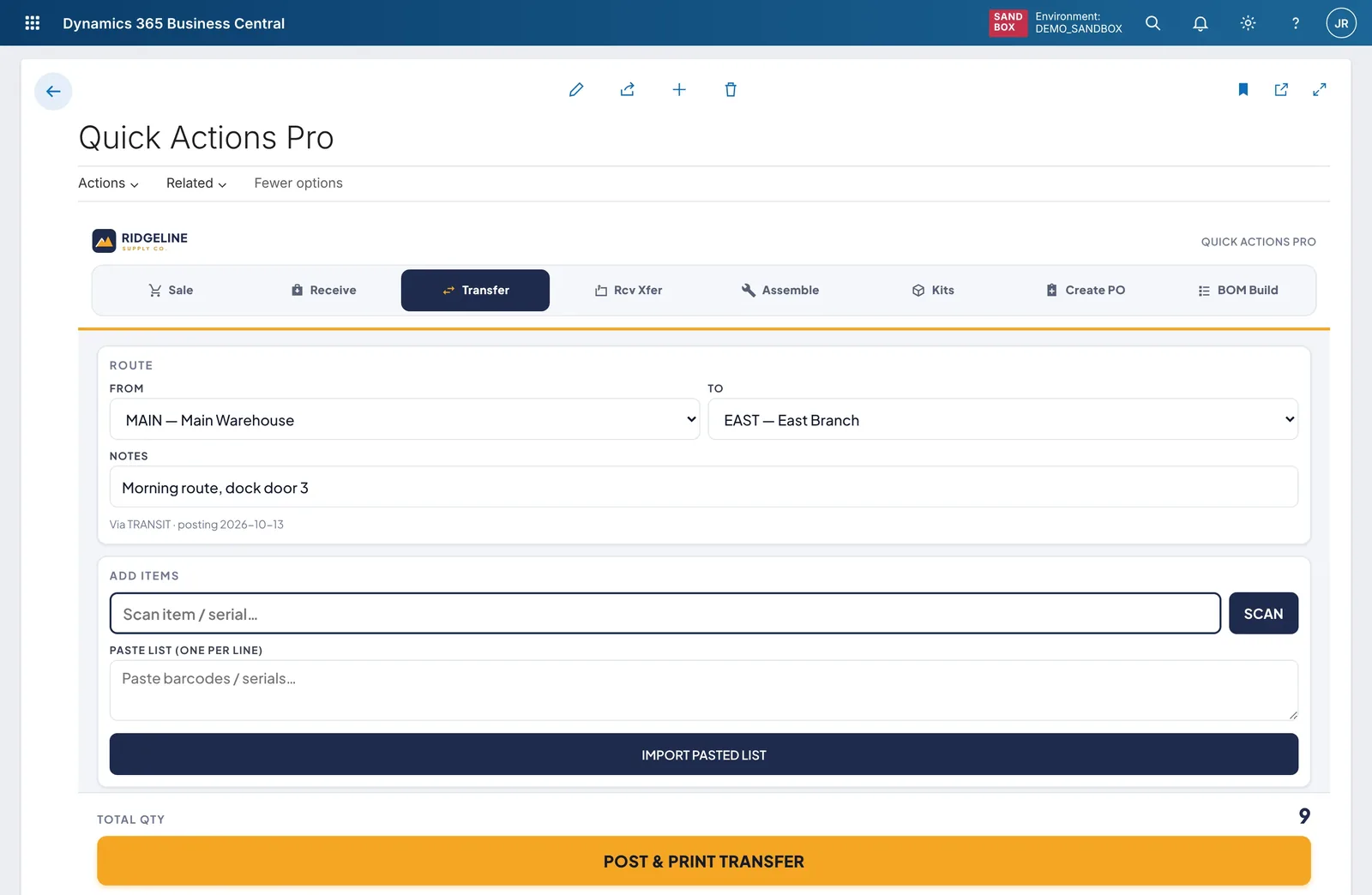
Transfer tab, close up: from Main Warehouse to East Branch, a note for the run, a scan field, a box to paste a barcode list and the Post and print transfer button.
(opens the full screen in a new tab)
TransferFrom, to, scan or paste a list, post and print.
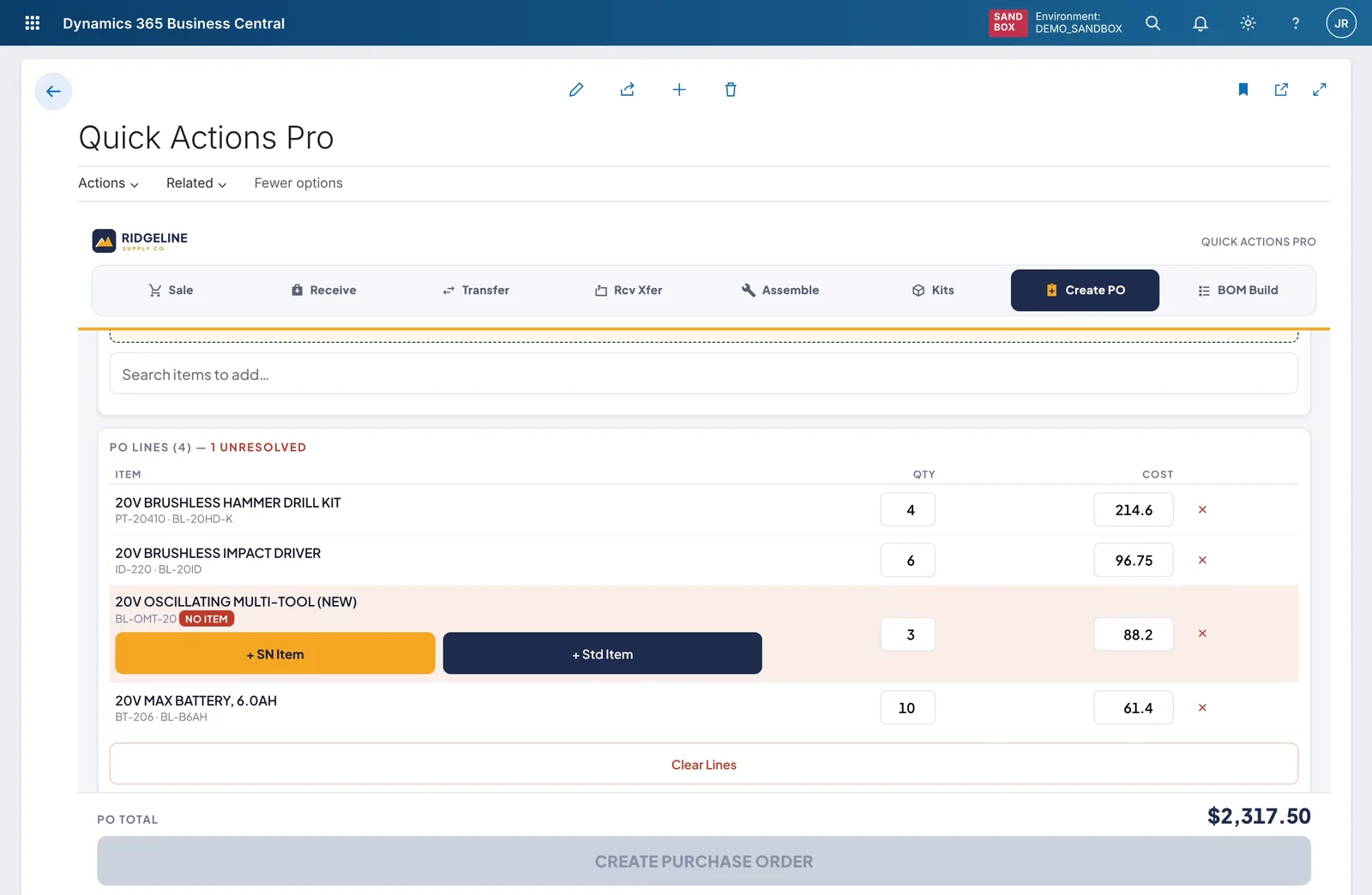
Create PO tab, close up: a purchase order line for an item that does not exist yet, flagged No item, with buttons to create it as a serialized or standard item.
(opens the full screen in a new tab)
Create PONew items are created inline, not on another page.

The receive, transfer and counter tabs are now products

02 · Rental Center

A rental manager’s whole morning on one page.

Demo: Summit Ridge Equipment Rental, a multi-branch equipment rental company.

The problem and what we built

The problem

The questions a rental manager asks every day (what’s out, what’s earning its keep, what’s overdue, who’s over their credit limit) have answers spread across contracts, units, posted invoices and reports.

What we built

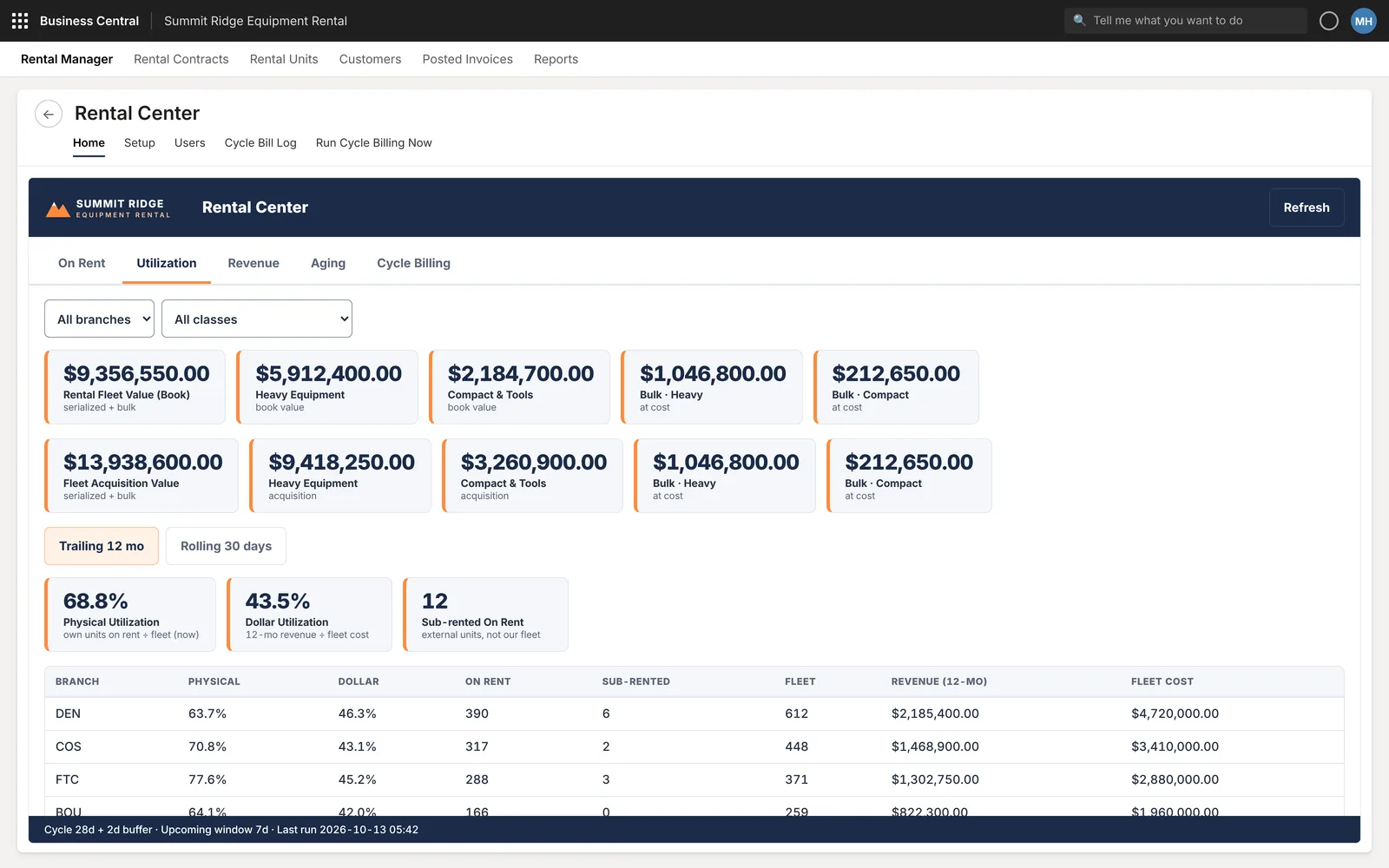
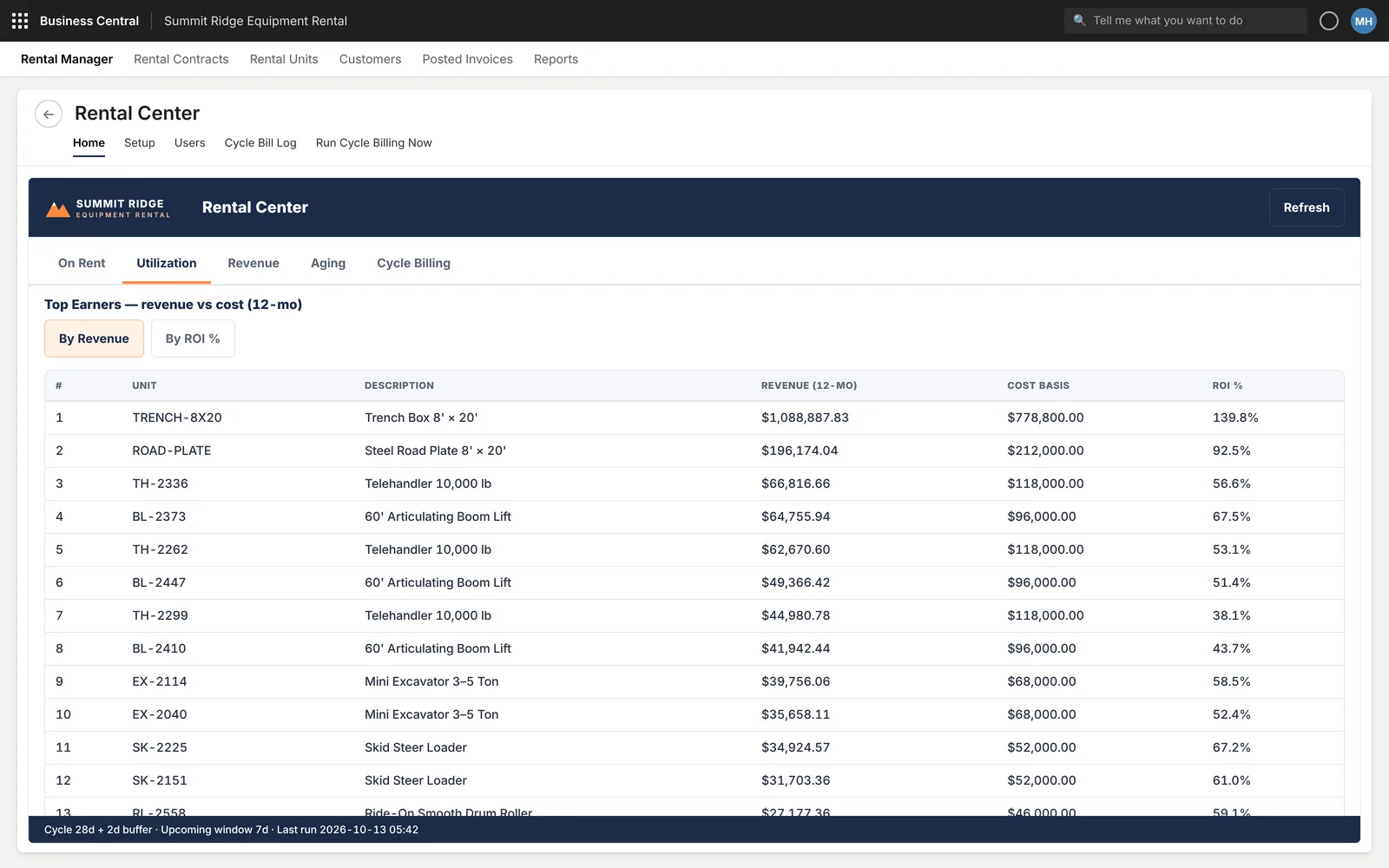
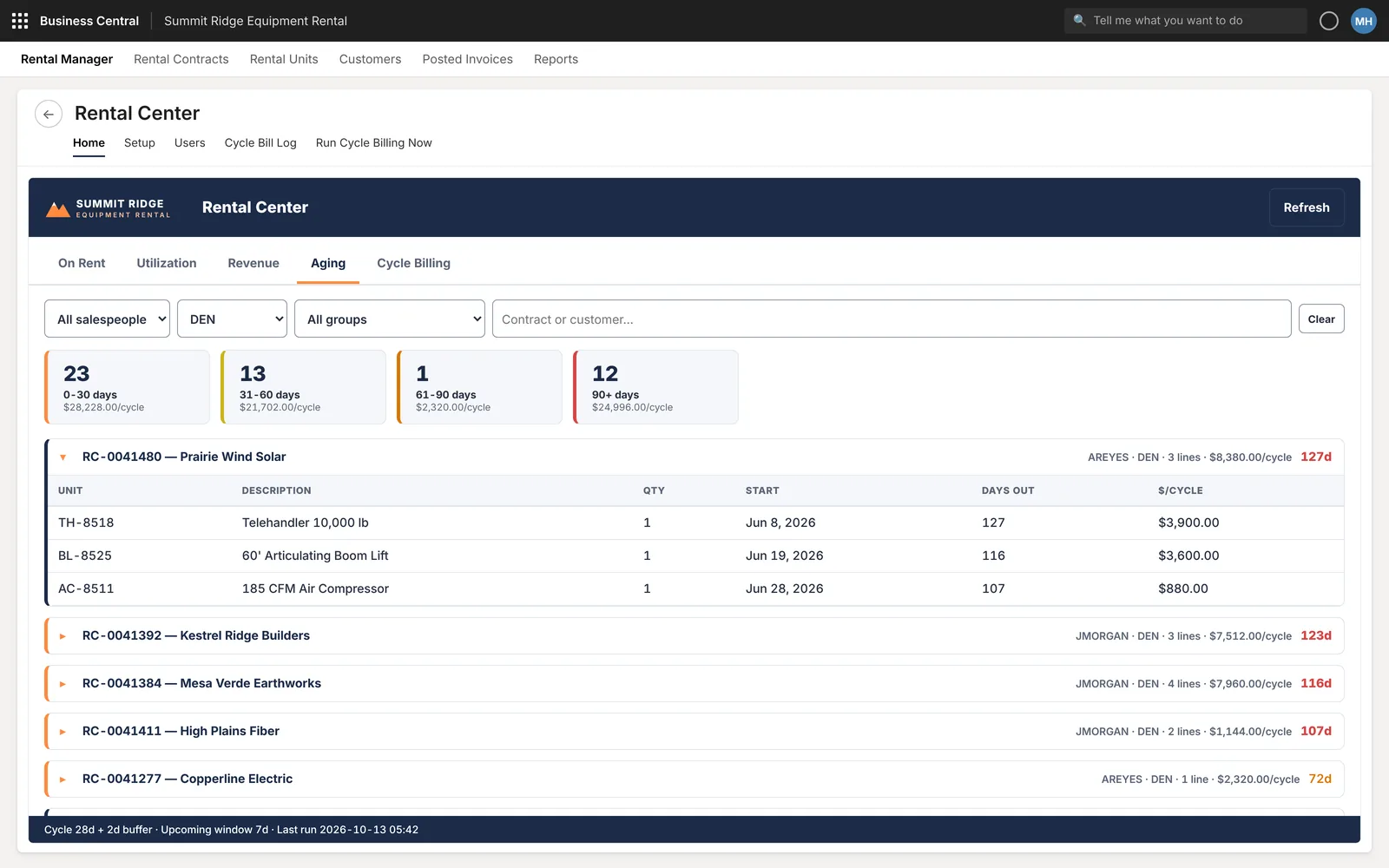
A cockpit page with five tabs. On rent: contract and unit counts plus expandable contracts. Utilization: fleet value and physical and dollar utilization by branch, and top earners by return on cost. Revenue. Aging by days out. Cycle billing: upcoming bills, a billed log and a repo watch list.

How it works now

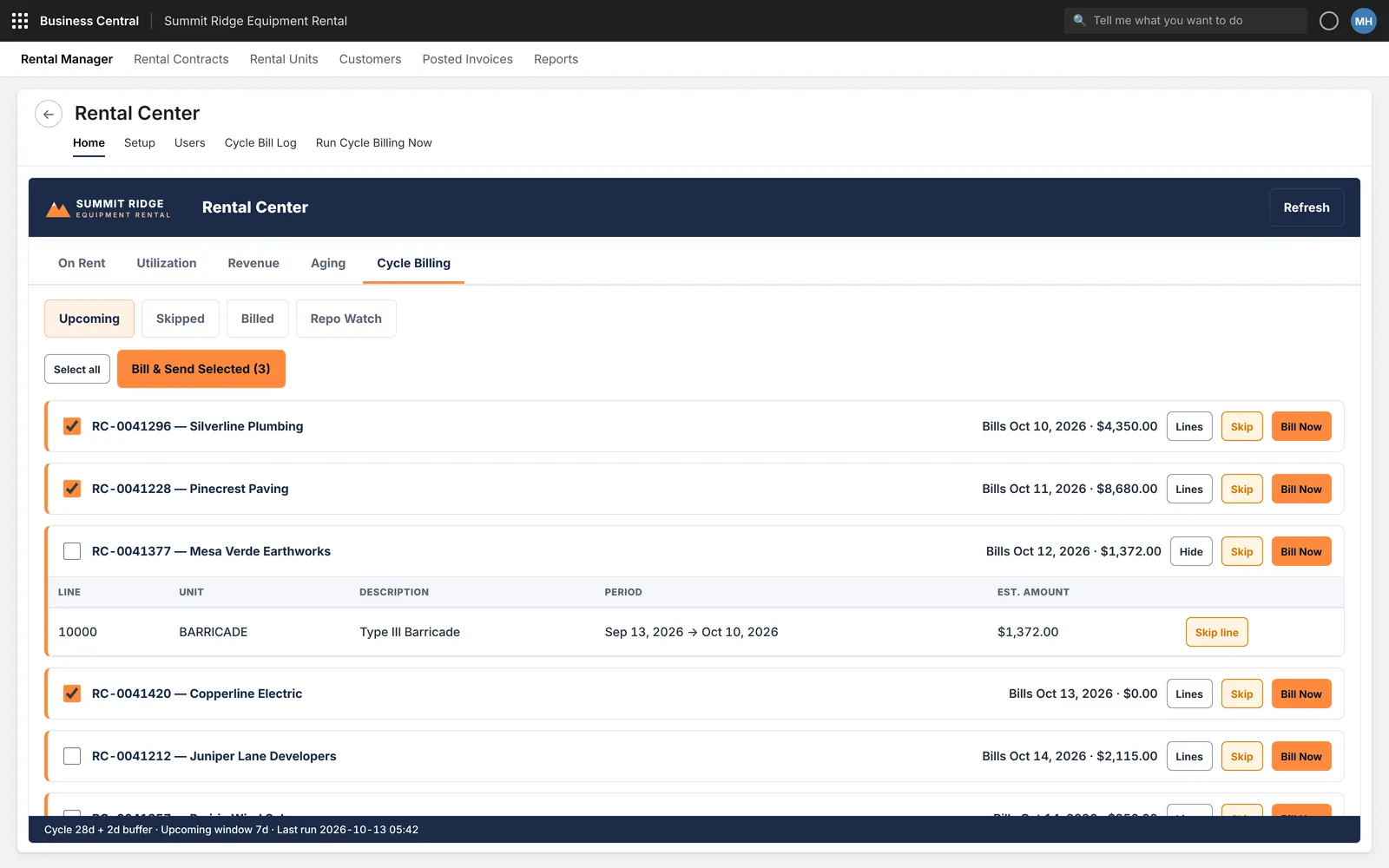
The daily check is one page with filters by salesperson, branch and group. Cycle billing runs from a list where each contract can be billed now or skipped, failed postings show their error next to the contract, and customers over their limit with equipment still out are listed in one place.
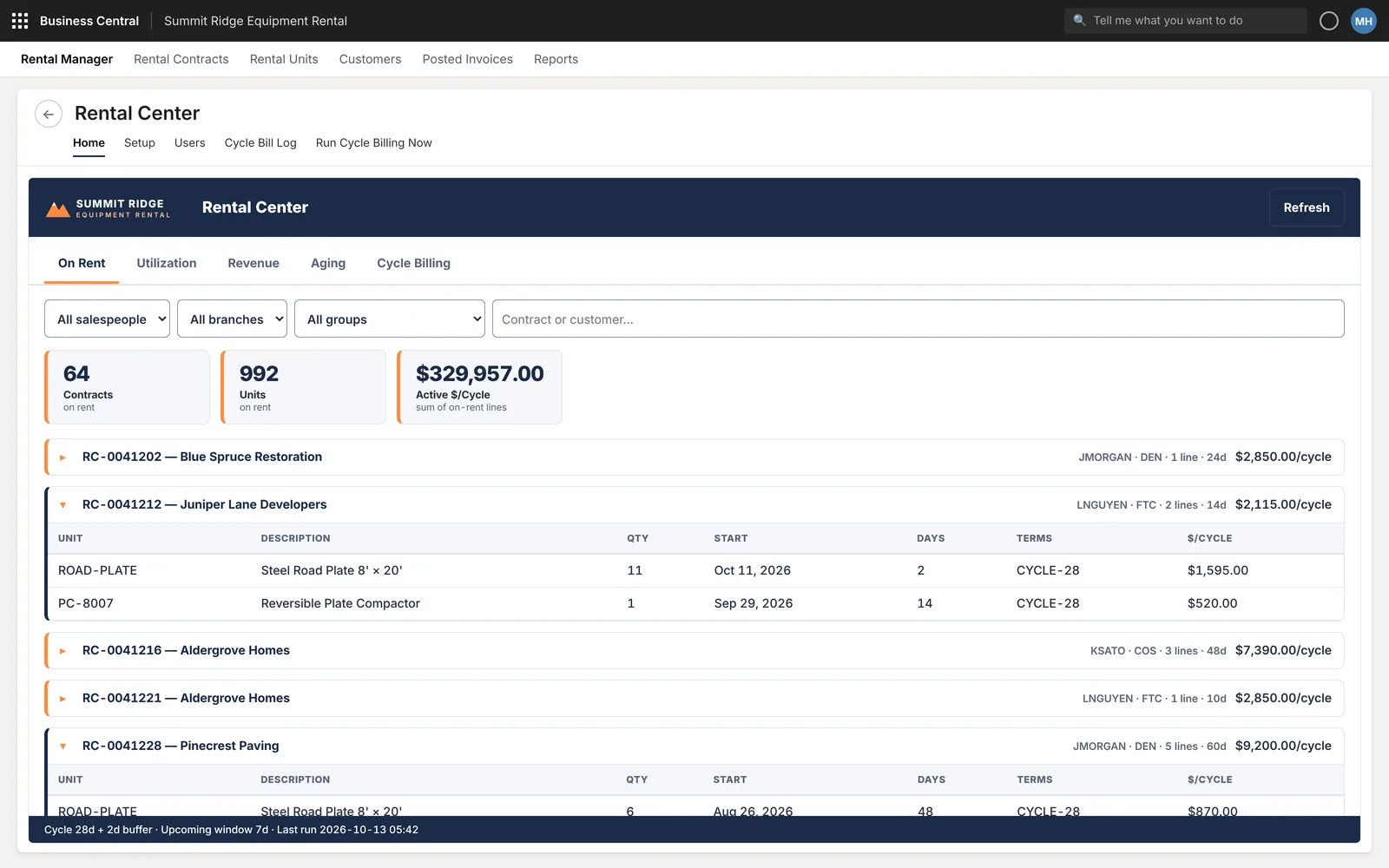
Rental Center On rent tab inside Business Central: 64 contracts on rent, 992 units and active dollars per cycle, then contracts that expand to show each unit, start date, days out and rate.
(opens the full screen in a new tab)
On rentHeadline numbers, then every contract one click deep.
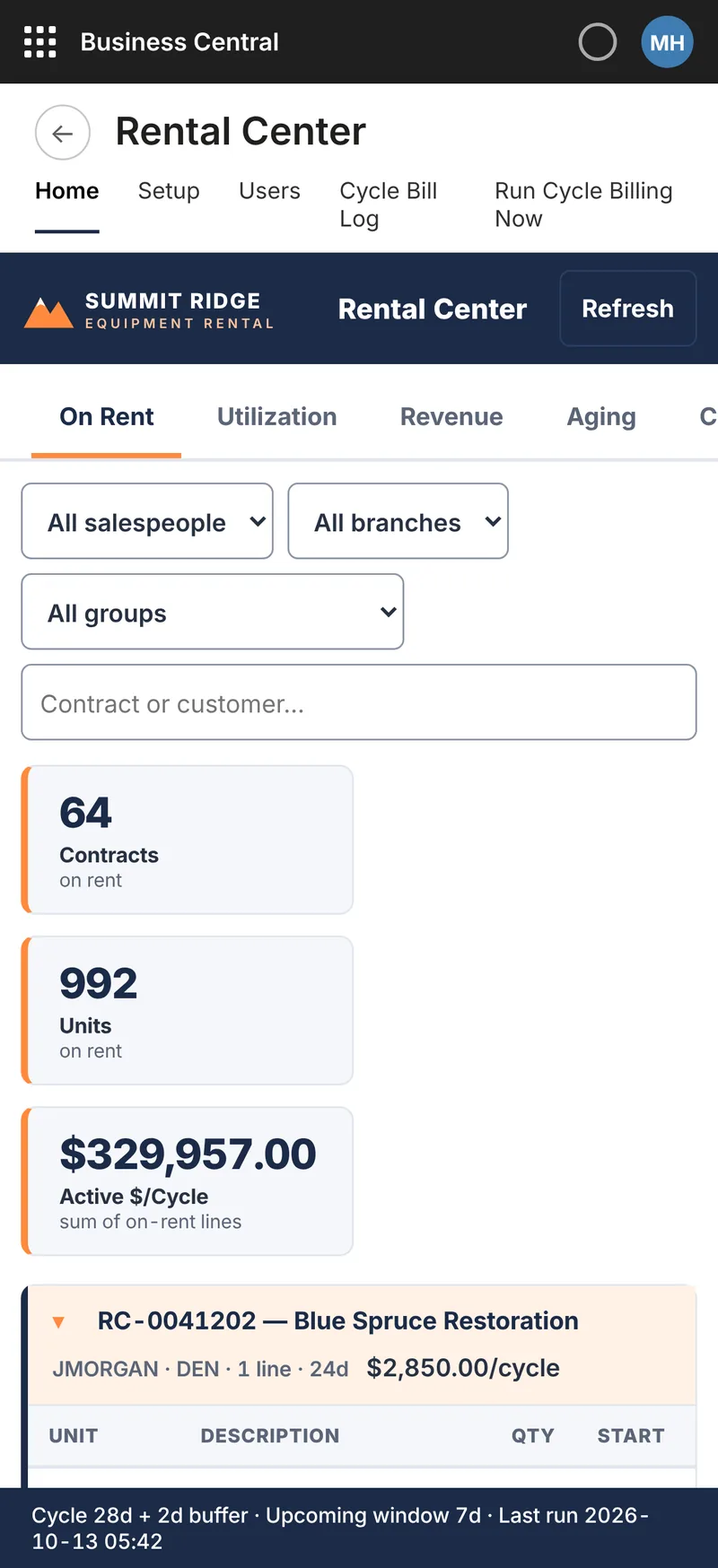
The On rent tab on a phone: filters stack, the three headline numbers become cards and contracts expand below.
(opens the full screen in a new tab)
Same page, phoneFilters and numbers stack for a small screen.
Utilization tab, close up: fleet book and acquisition value by class, physical and dollar utilization, and the start of the table by branch.
(opens the full screen in a new tab)
UtilizationPhysical and dollar utilization by branch.
Top earners, close up: units ranked by 12-month revenue, each with its cost basis.
(opens the full screen in a new tab)
Top earnersRevenue against cost for every unit.
Aging tab, close up: contract counts in 0 to 30, 31 to 60, 61 to 90 and 90-plus day buckets, then the oldest contract expanded with days out per unit.
(opens the full screen in a new tab)
AgingContracts by days out, longest first.
Cycle billing, close up: each upcoming contract with its bill date and amount, and Lines, Skip and Bill now buttons.
(opens the full screen in a new tab)
Cycle billingBill now, skip or bill a batch.
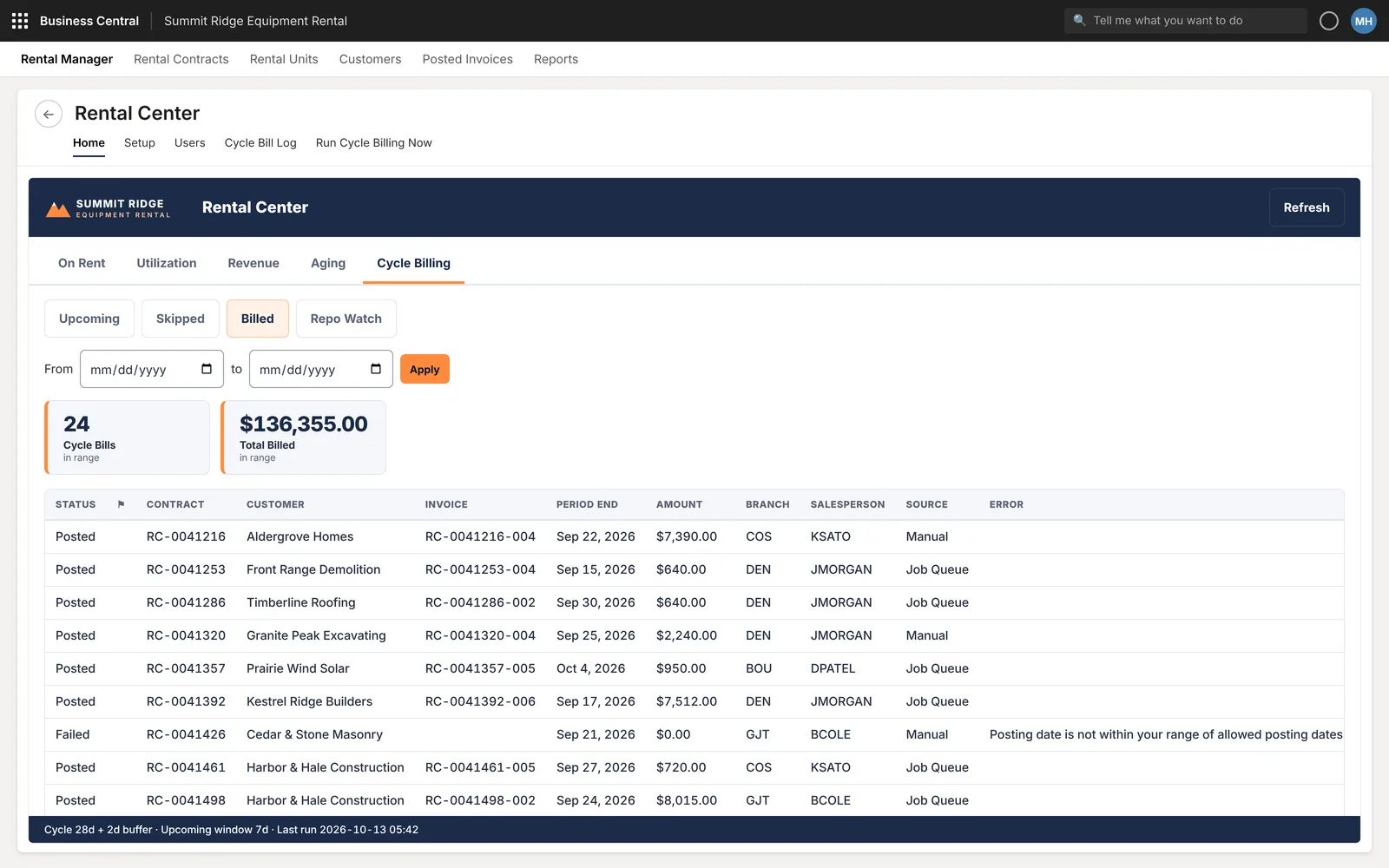
Billed log, close up: invoice amounts, branch, salesperson and source per bill, and a failed posting with its error message on the line.
(opens the full screen in a new tab)
Billed logFailed postings show the error on the line.
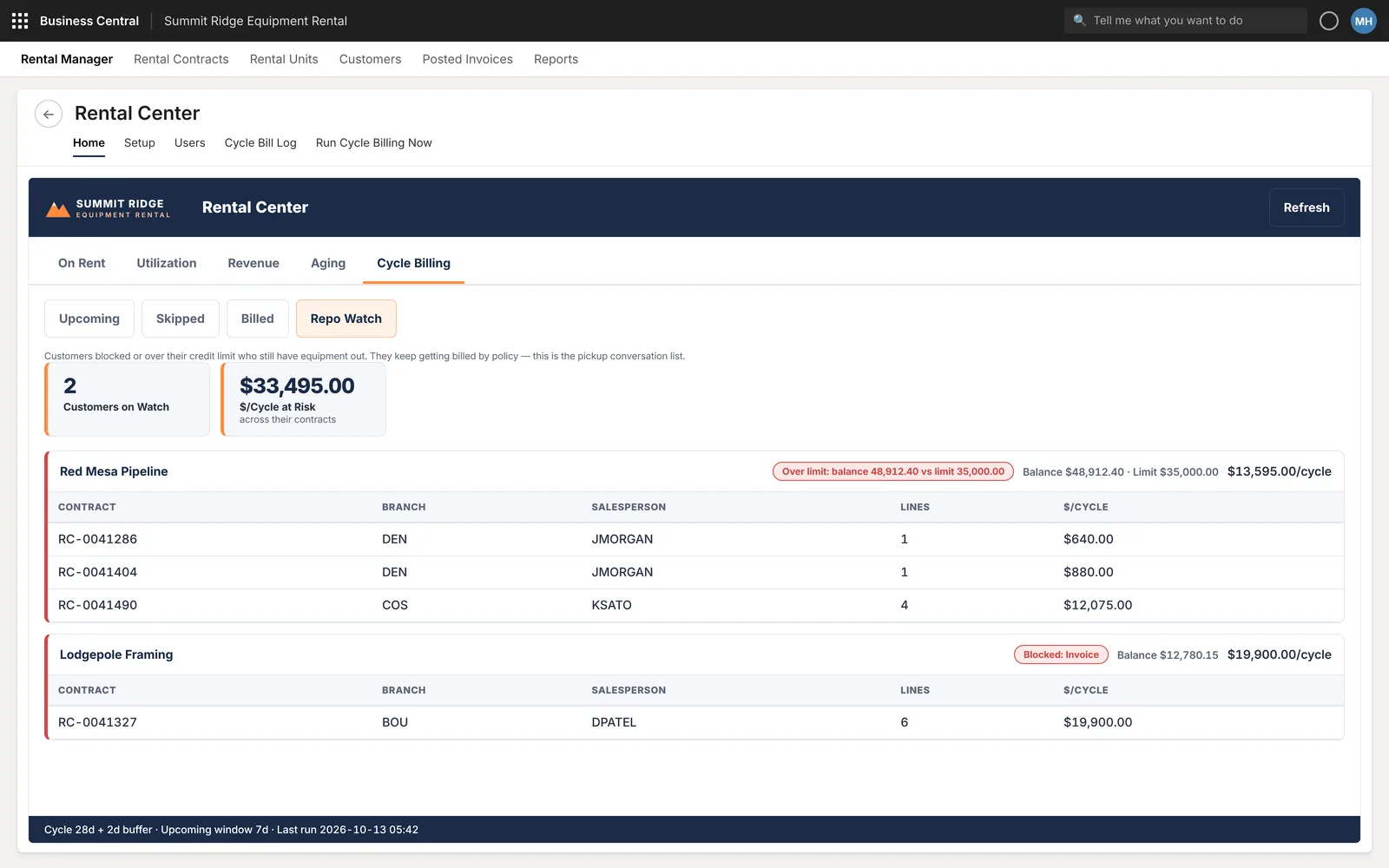
Repo watch, close up: 2 customers on watch and dollars per cycle at risk, then a customer over its credit limit with each contract still out.
(opens the full screen in a new tab)
Repo watchOver the limit with equipment still out.

03 · Purchasing Dashboard

Buy for five stores without a spreadsheet in between.

Demo: Cobalt Supply, a distributor with five stores.

The problem and what we built

The problem

Working out what to reorder, from which vendor and for which store usually means exporting to Excel, adding up demand and stock by hand, and only then creating purchase orders. Stock sitting in another store is easy to miss.

What we built

Restock recommendations grouped by vendor, with 12-month demand, stock by store, days of cover and an editable order quantity. A store view that flags when another store could transfer instead. Sales review by date range, item research from a pasted list, a PO splitter that divides an incoming order across stores by demand, and inventory turns against last year.

How it works now

The buyer reviews, adjusts and selects lines on one page, then creates the purchase orders from it. When an order arrives, its allocation to each store is worked out on screen and can still be edited cell by cell.
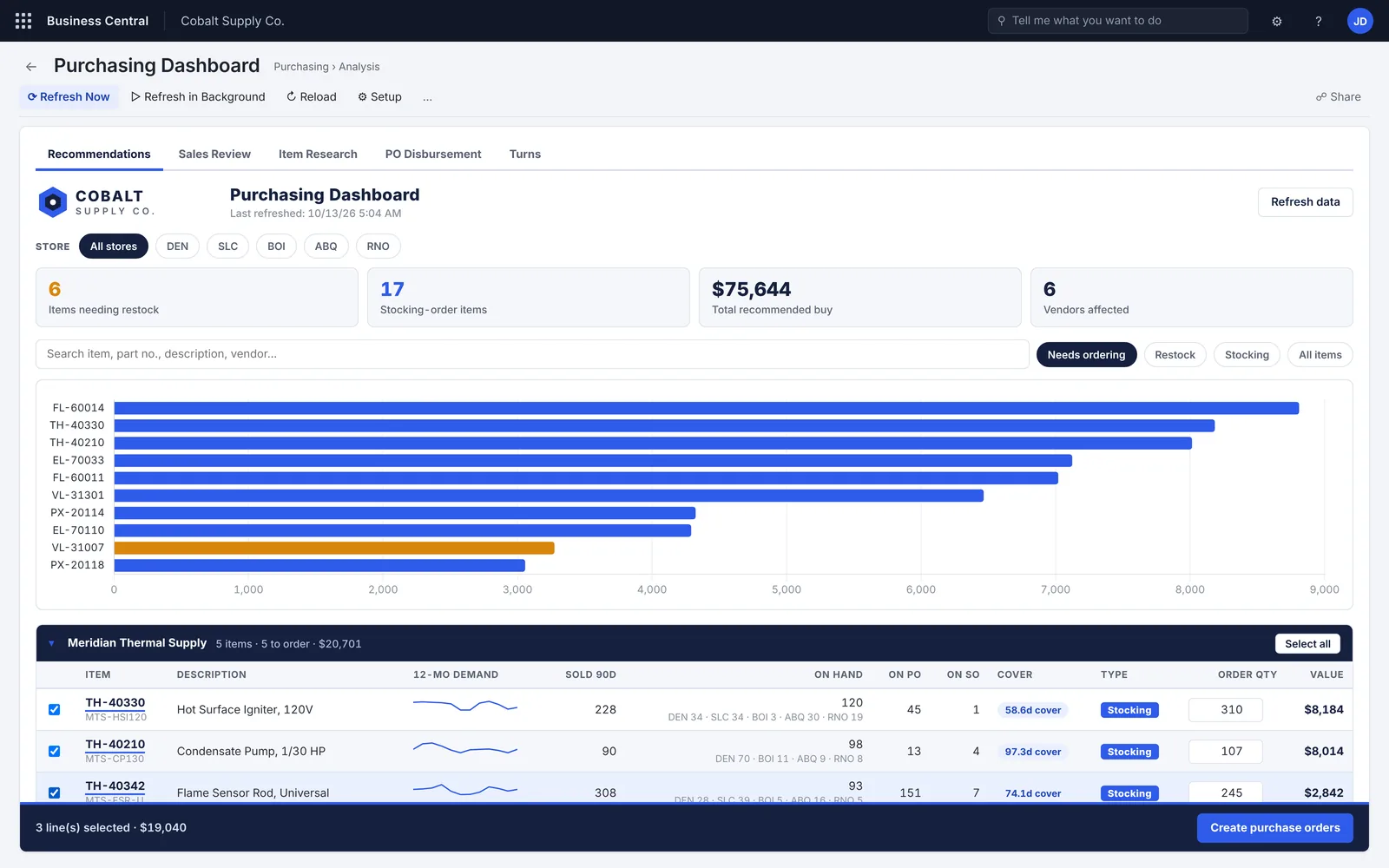
Purchasing Dashboard inside Business Central: items needing restock, total recommended buy, a bar chart of order value by item, and lines grouped by vendor with demand sparklines, stock by store, days of cover, order quantity and a Create purchase orders button.
(opens the full screen in a new tab)
RecommendationsTick the lines, create the purchase orders.
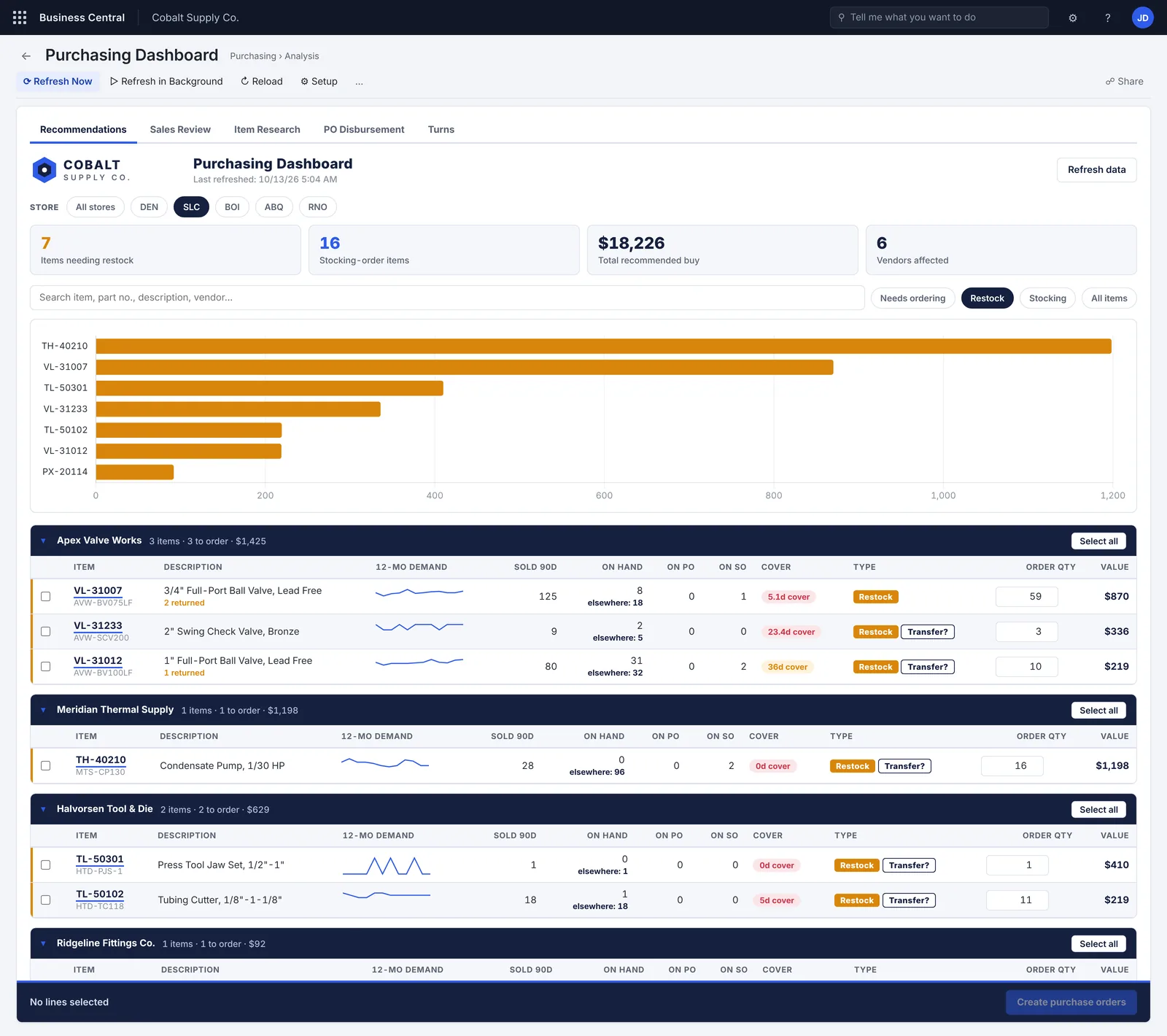
Store view, close up: restock lines show stock held elsewhere, days of cover and a Transfer? tag when another store could supply it.
(opens the full screen in a new tab)
Store viewFlags a transfer before you buy.
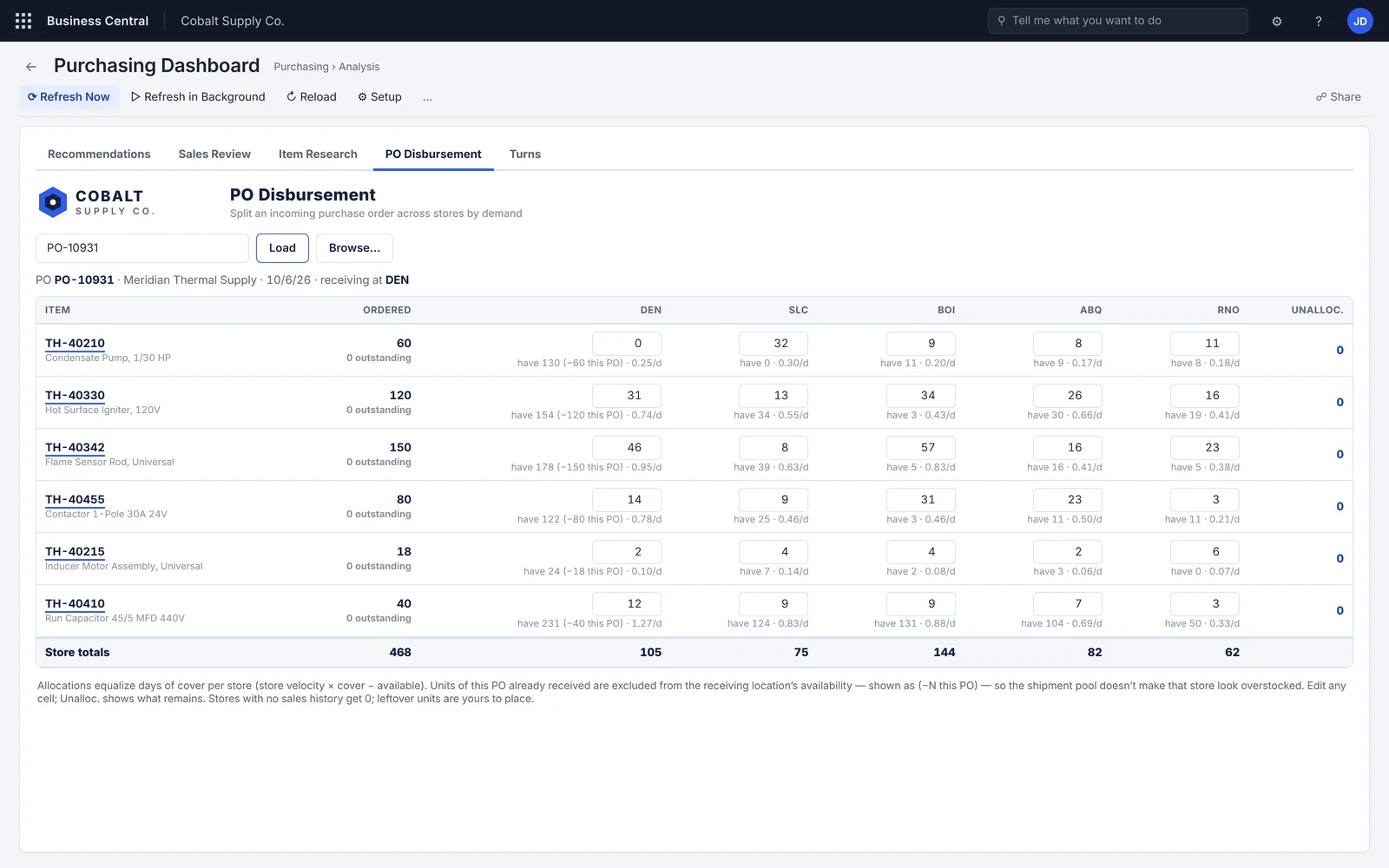
PO disbursement, close up: an incoming purchase order split across stores, each cell showing the allocation, current stock and daily sales rate.
(opens the full screen in a new tab)
PO disbursementSplit an incoming order across stores by demand.
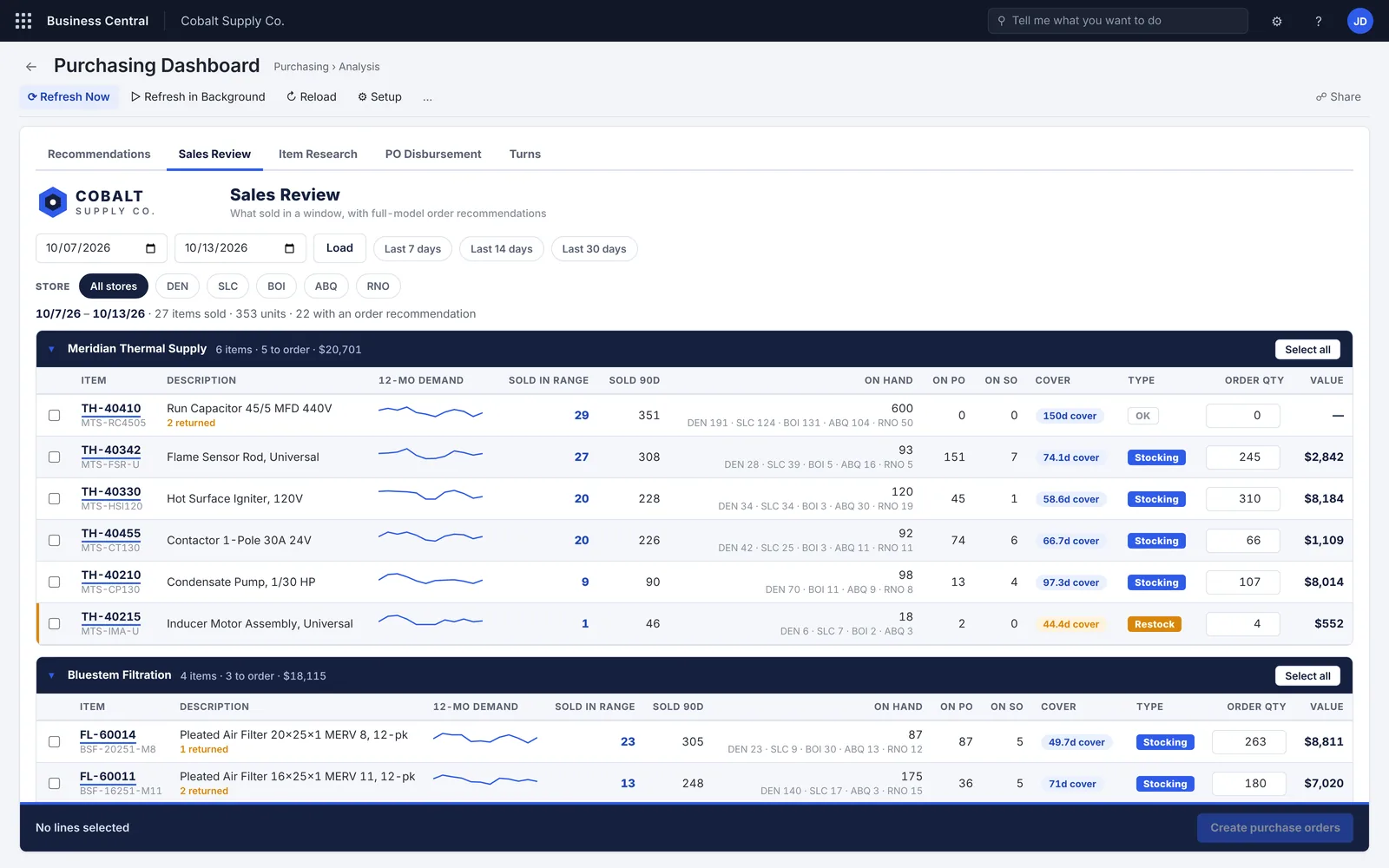
Sales review, close up: a chosen date window and the items sold in it, grouped by vendor with demand sparklines.
(opens the full screen in a new tab)
Sales reviewWhat sold this week, and what to reorder.
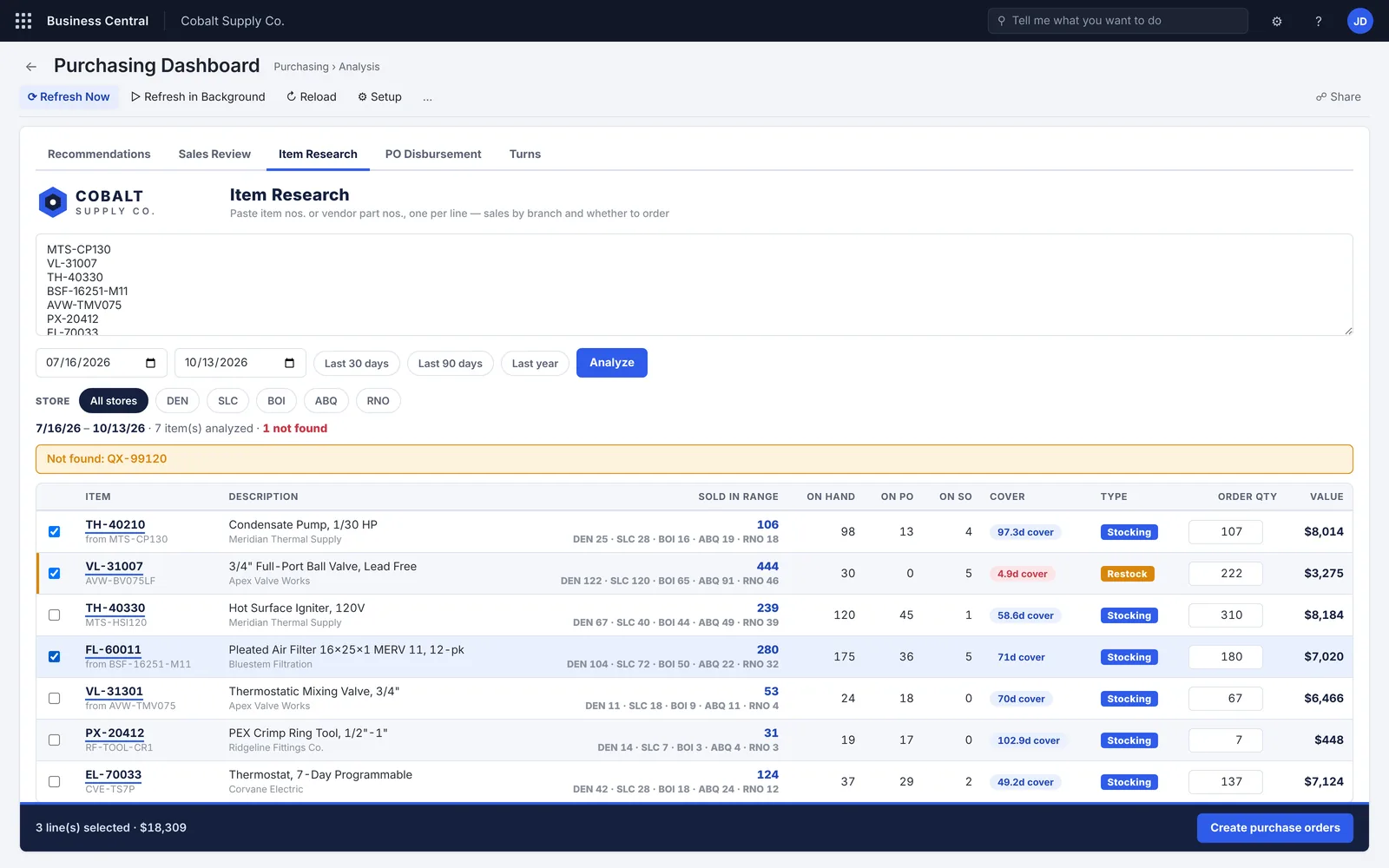
Item research, close up: a pasted list of part numbers, a date range, Analyze, and one number flagged as not found.
(opens the full screen in a new tab)
Item researchPaste a list, get the analysis.
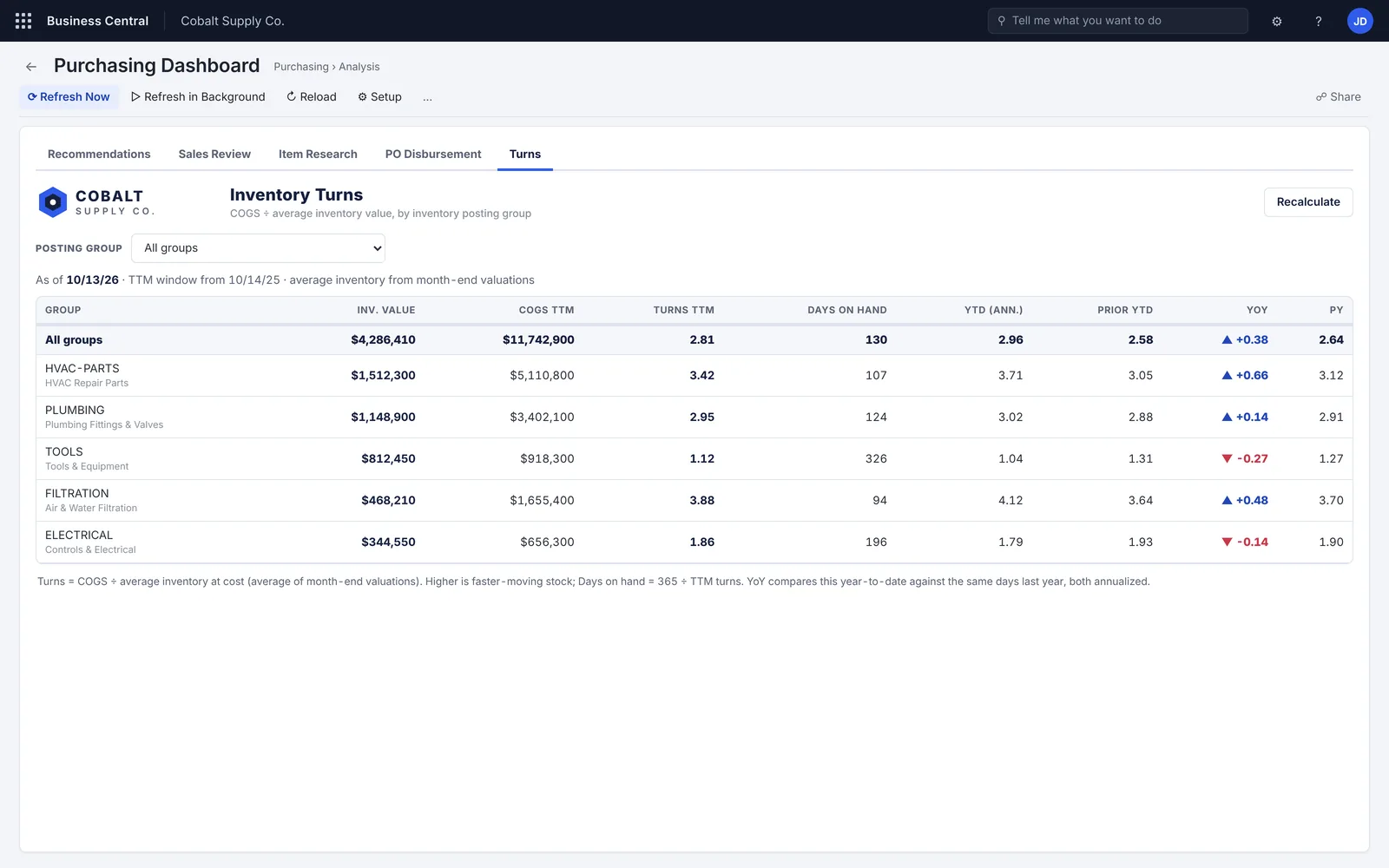
Inventory turns, close up: inventory value, cost of goods and turns by posting group.
(opens the full screen in a new tab)
Inventory turnsBy posting group, against last year.

04 · Price List Manager

Check a vendor’s price file before it changes a single price.

Demo: Ridgeline Supply, with location-specific pricing across branches.

The problem and what we built

The problem

New vendor prices arrive as spreadsheets. In standard Business Central, loading them means editing price list lines by hand or through Edit in Excel, with no clear view of what will go up, what will drop and what will fail. Branch discounts make it harder still to see which price is live.

What we built

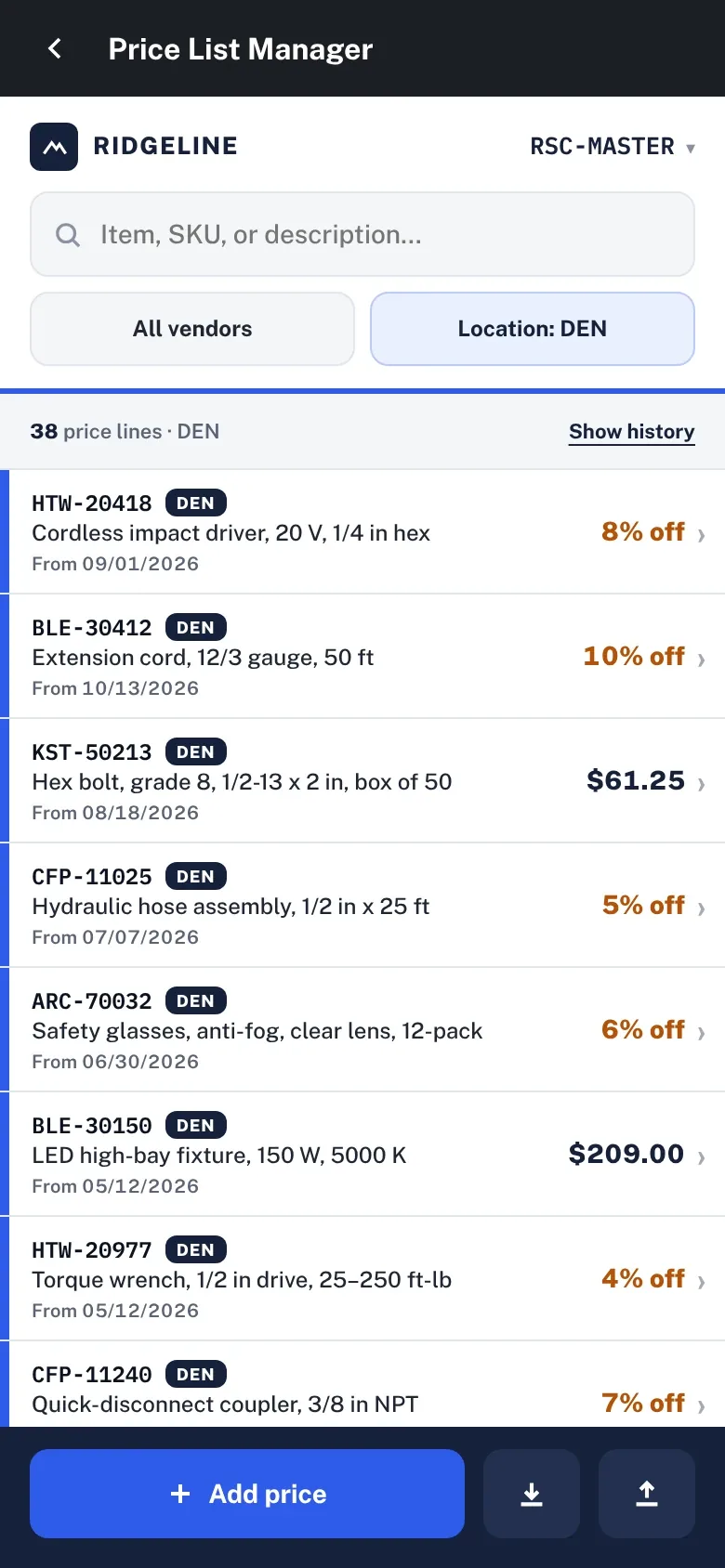
A price list page filtered by vendor and location, showing current, scheduled and ended lines. CSV download and upload, with an import review that sorts the file into new, updated, drops, unchanged and errors. An MSRP panel on the standard Item Card. A phone layout with a discount sheet scoped to all branches or one.

How it works now

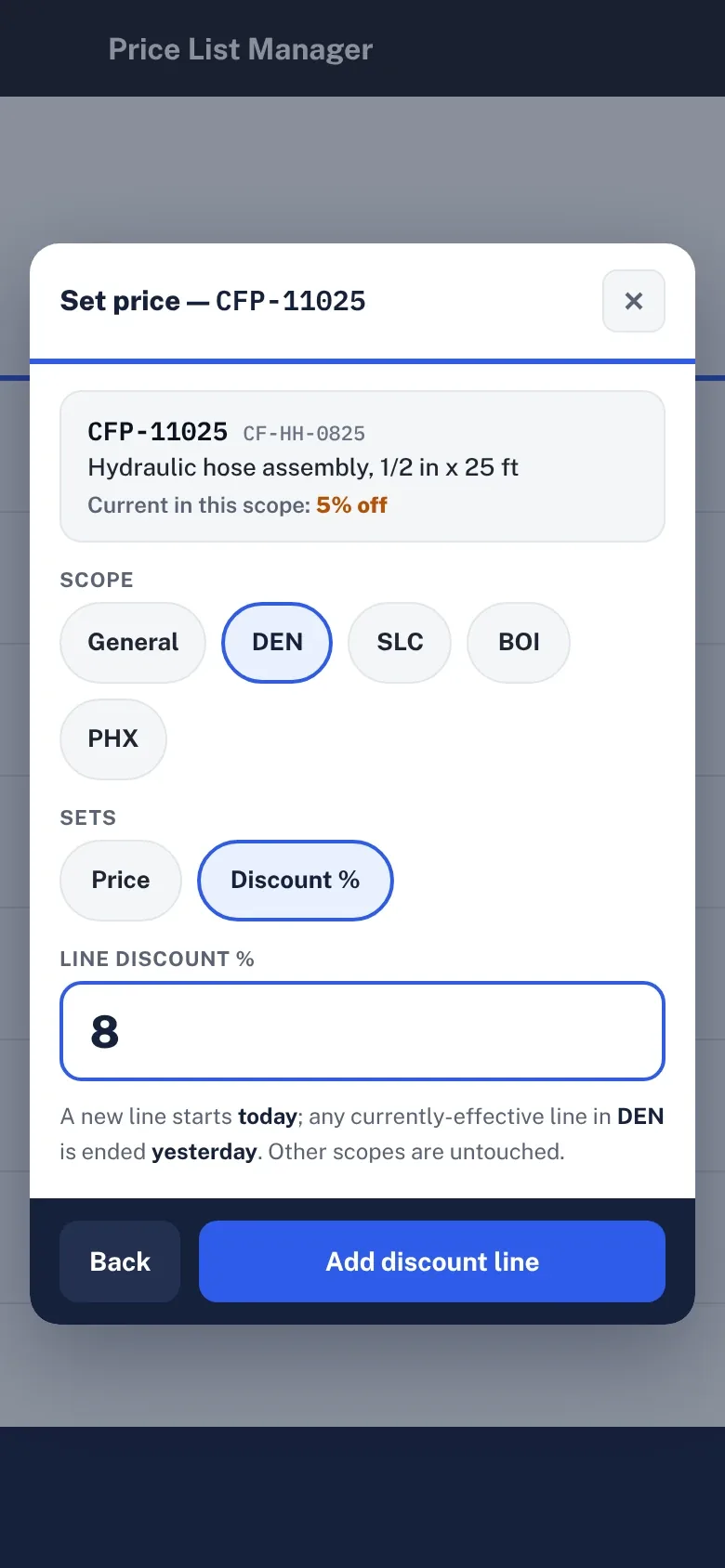
Every change in a price file is seen before it’s applied, and lines can be unticked. Setting a branch discount on a phone ends the current line yesterday and starts the new one today, leaving other branches untouched.
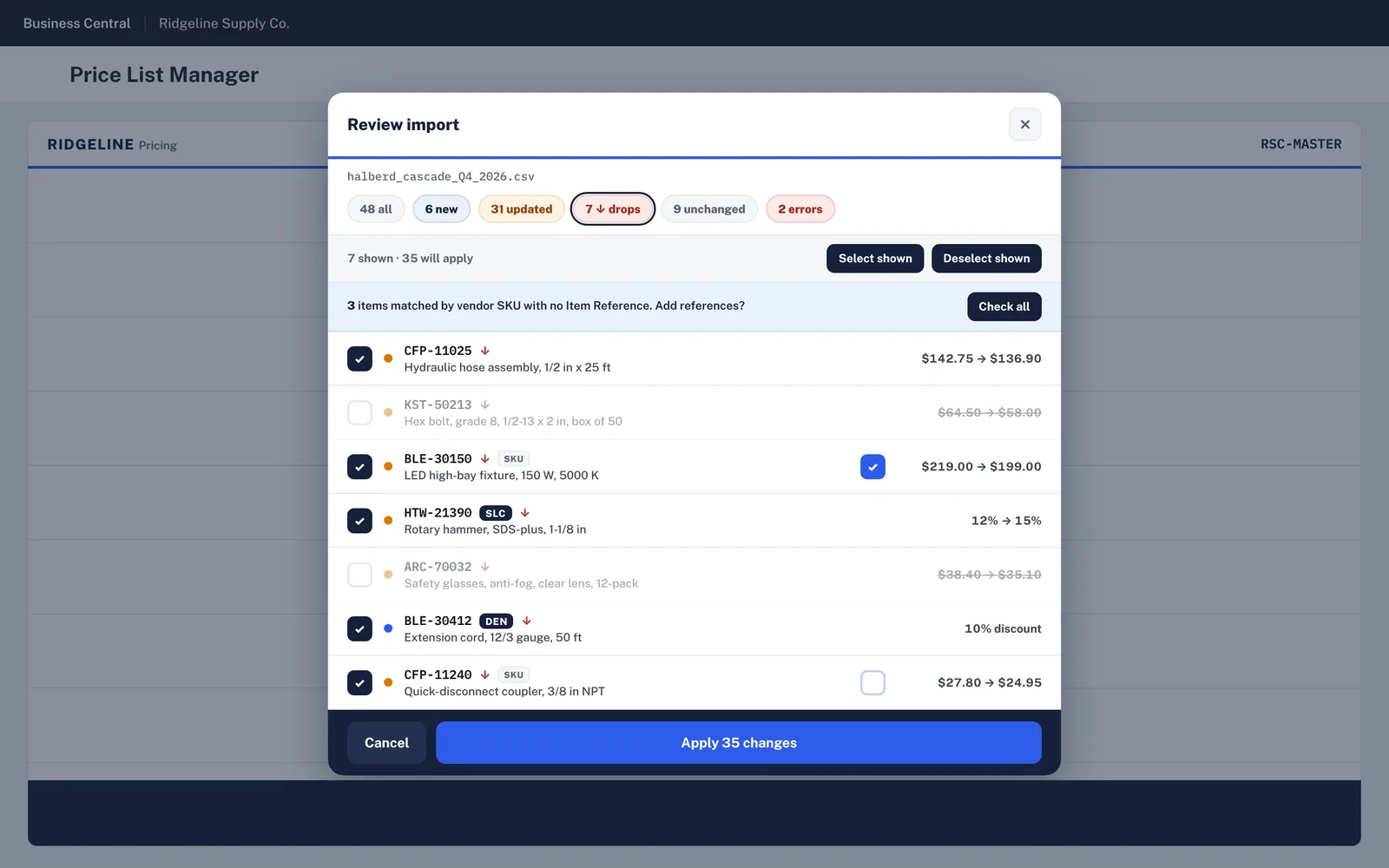
Import review for a vendor CSV: counts of new, updated, dropped, unchanged and error lines, each price change shown old to new with a tick box, and Apply 35 changes.
(opens the full screen in a new tab)
Import reviewEvery change in the file, ticked or unticked, before it applies.
Price list on a phone, filtered to one branch: each item with its current price or discount and start date, and an Add price button.
(opens the full screen in a new tab)
Price list, phoneOne branch’s live prices and discounts.
Set price sheet on a phone: choose the scope, general or one branch, choose price or discount percent, enter the value and add the discount line.
(opens the full screen in a new tab)
Discount, phoneScope, type, value, done.
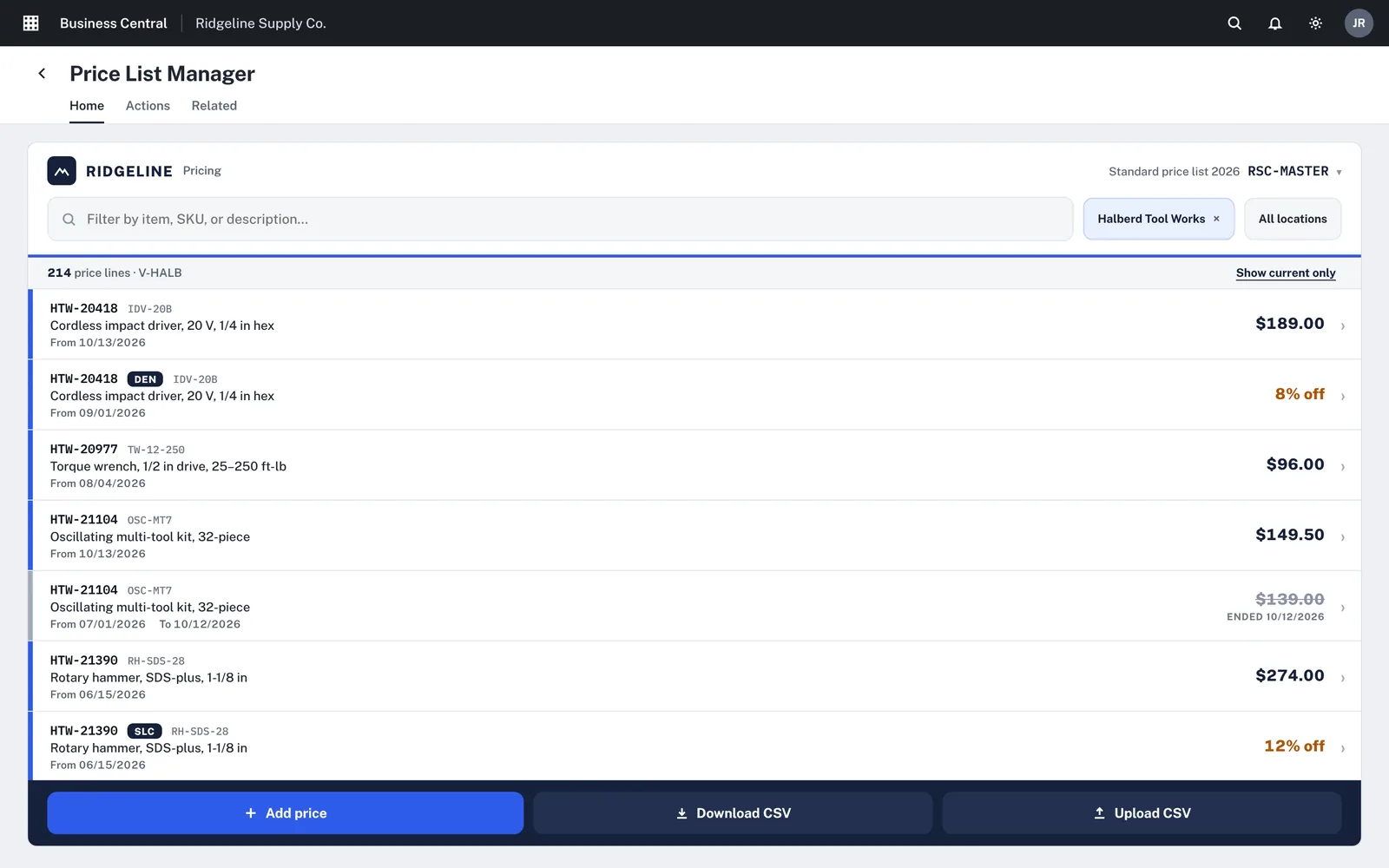
Price list, close up: current prices, branch discounts and an ended line, with Download CSV and Upload CSV.
(opens the full screen in a new tab)
Price listCurrent, branch and ended lines together.
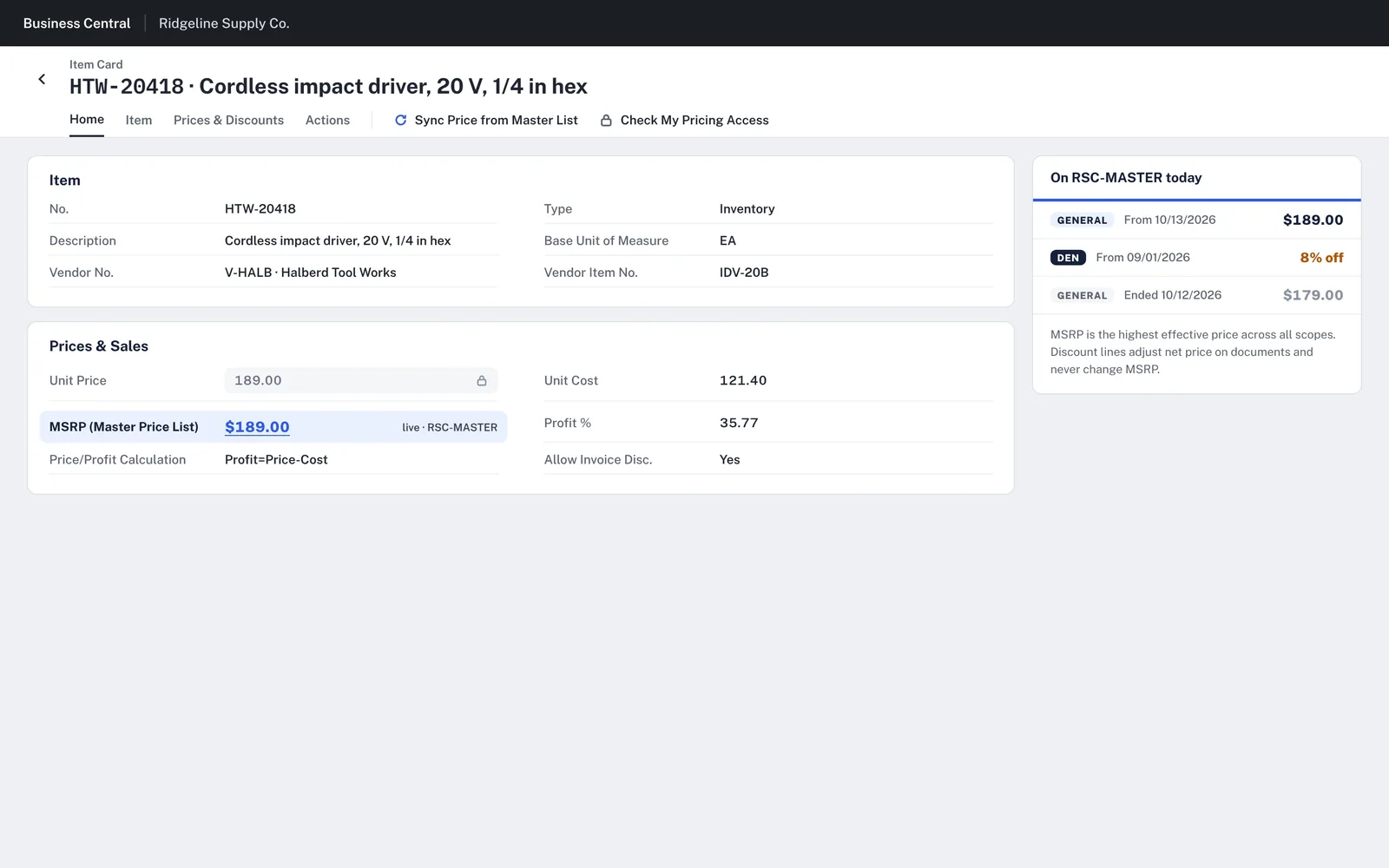
The standard Item Card, close up: a panel showing what's live on the master price list today, general and branch lines.
(opens the full screen in a new tab)
On the Item CardWhat’s live on the master list today.

05 · Sales Center

From “what are we selling today?” to an order.

Demo: Summit Supply, an equipment dealer whose reps quote packaged systems.

The problem and what we built

The problem

Quoting an equipment package on standard sales pages means adding lines one at a time, checking stock and margin on other pages, then passing the won order to purchasing to buy what isn’t in stock.

What we built

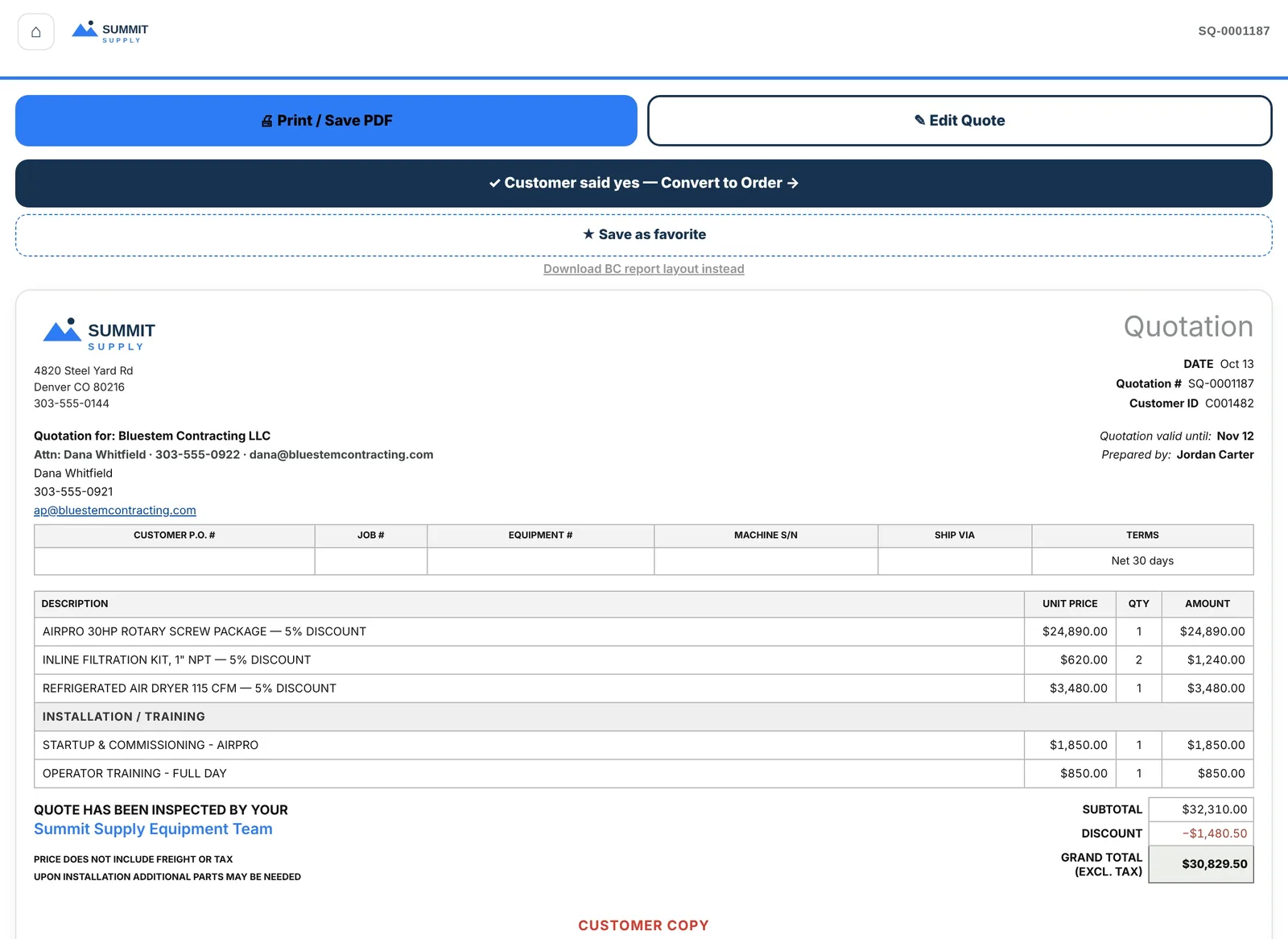
A rep-facing app with a tile home (pending quotes, approvals, open orders, favorites). A solution builder that imports a vendor cart as one package line and shows margin and stock per line. A customer-ready quote view. A purchasing screen for orders the builder created, and a revenue dashboard by salesperson.

How it works now

Reps see margin while they build, print or save the quote as a PDF from the same screen, and turn it into an order with one button when the customer agrees. Purchasing picks up those orders with stock by location already on each line.
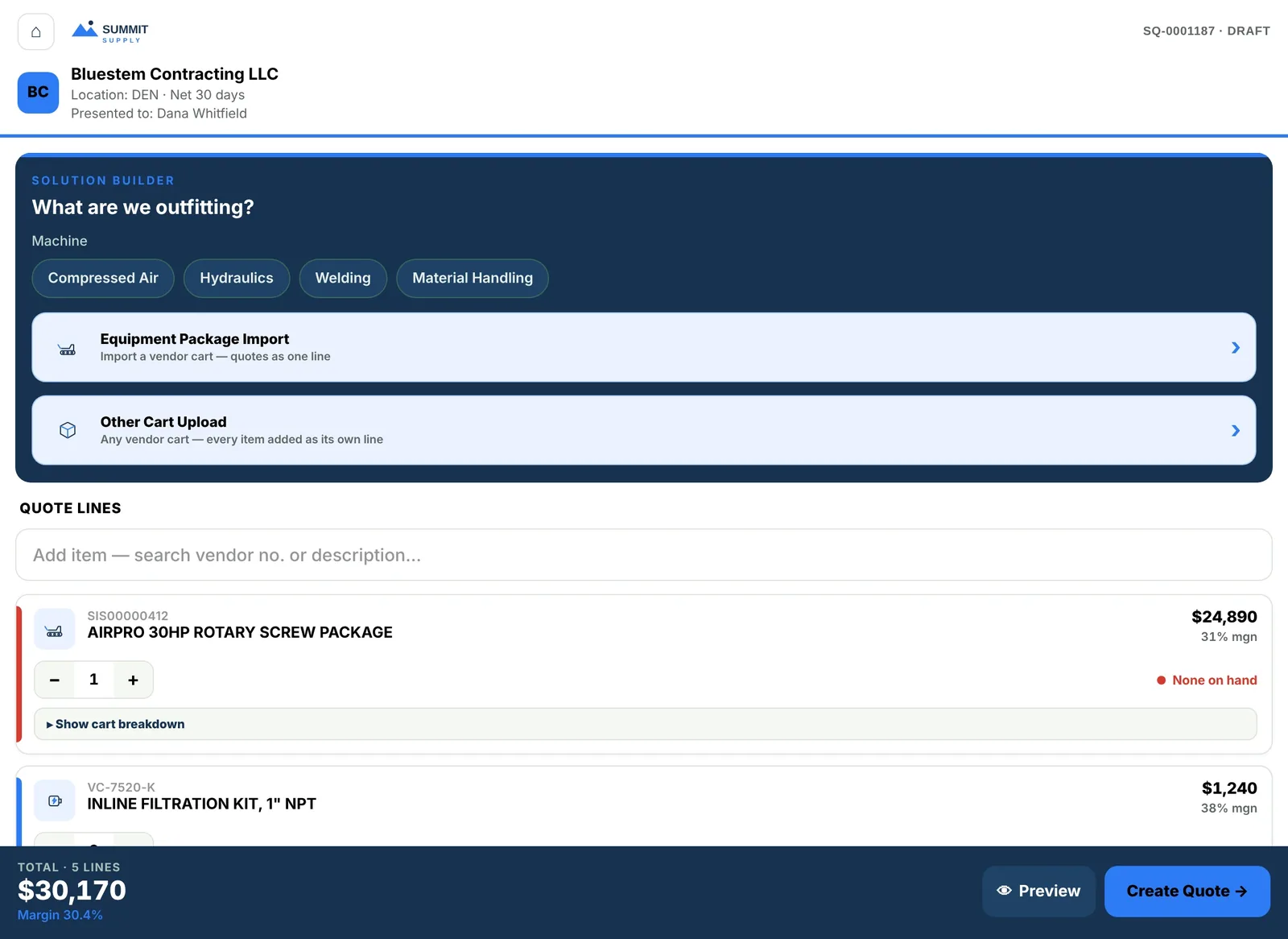
Solution builder: pick the machine type, import a vendor equipment package as one quote line, and quote lines with price, margin and stock, totalled with overall margin.
(opens the full screen in a new tab)
Solution builderMargin and stock on every quote line.
Quote view, close up: Print or save PDF, Edit quote, and a Customer said yes, convert to order button above the customer-ready quotation.
(opens the full screen in a new tab)
Quote view“Customer said yes” converts it to an order.
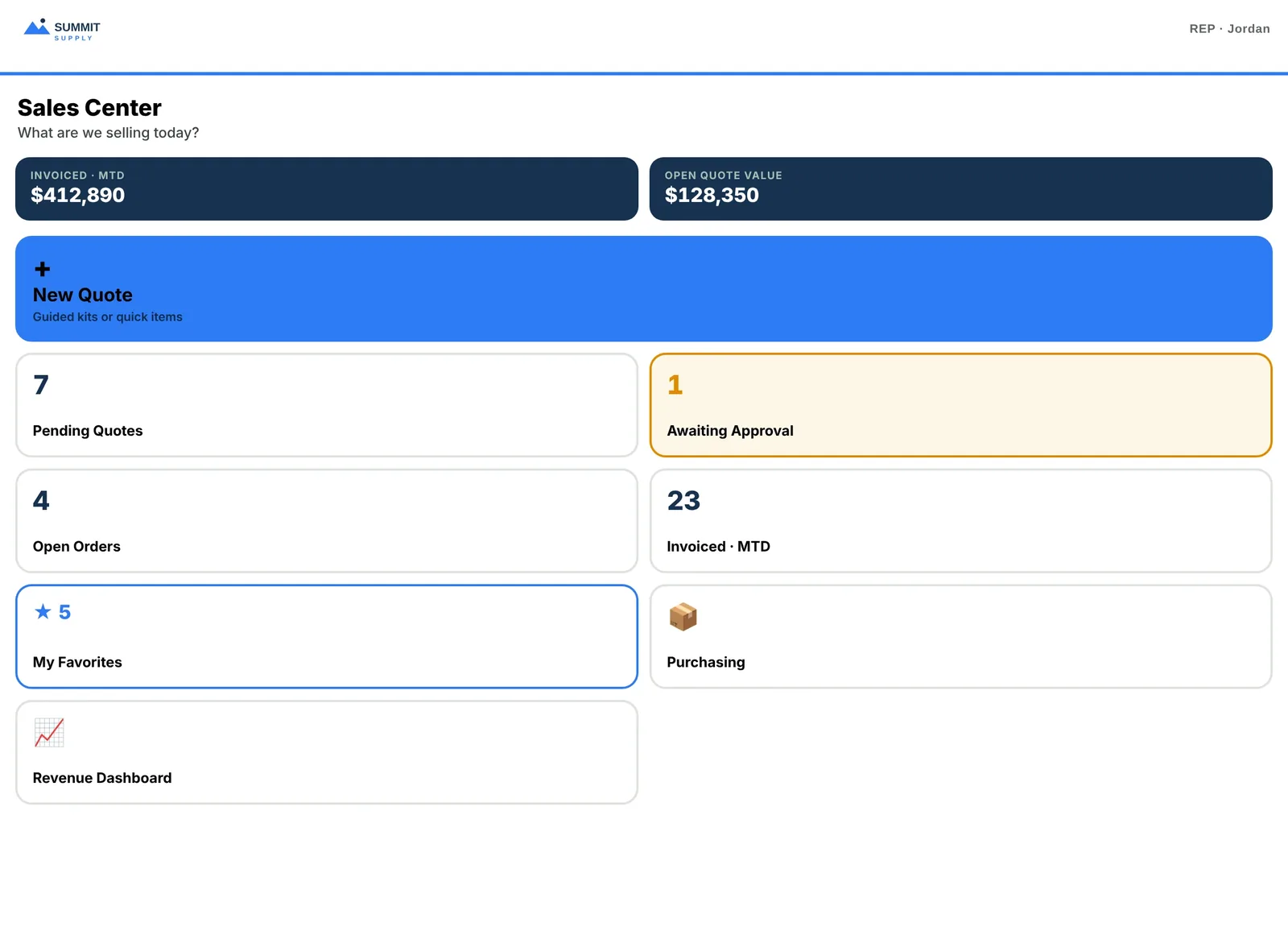
Sales Center home, close up: invoiced this month, open quote value, a New quote button and tiles for pending quotes, approvals, open orders and favorites.
(opens the full screen in a new tab)
HomeThe rep’s day in tiles.
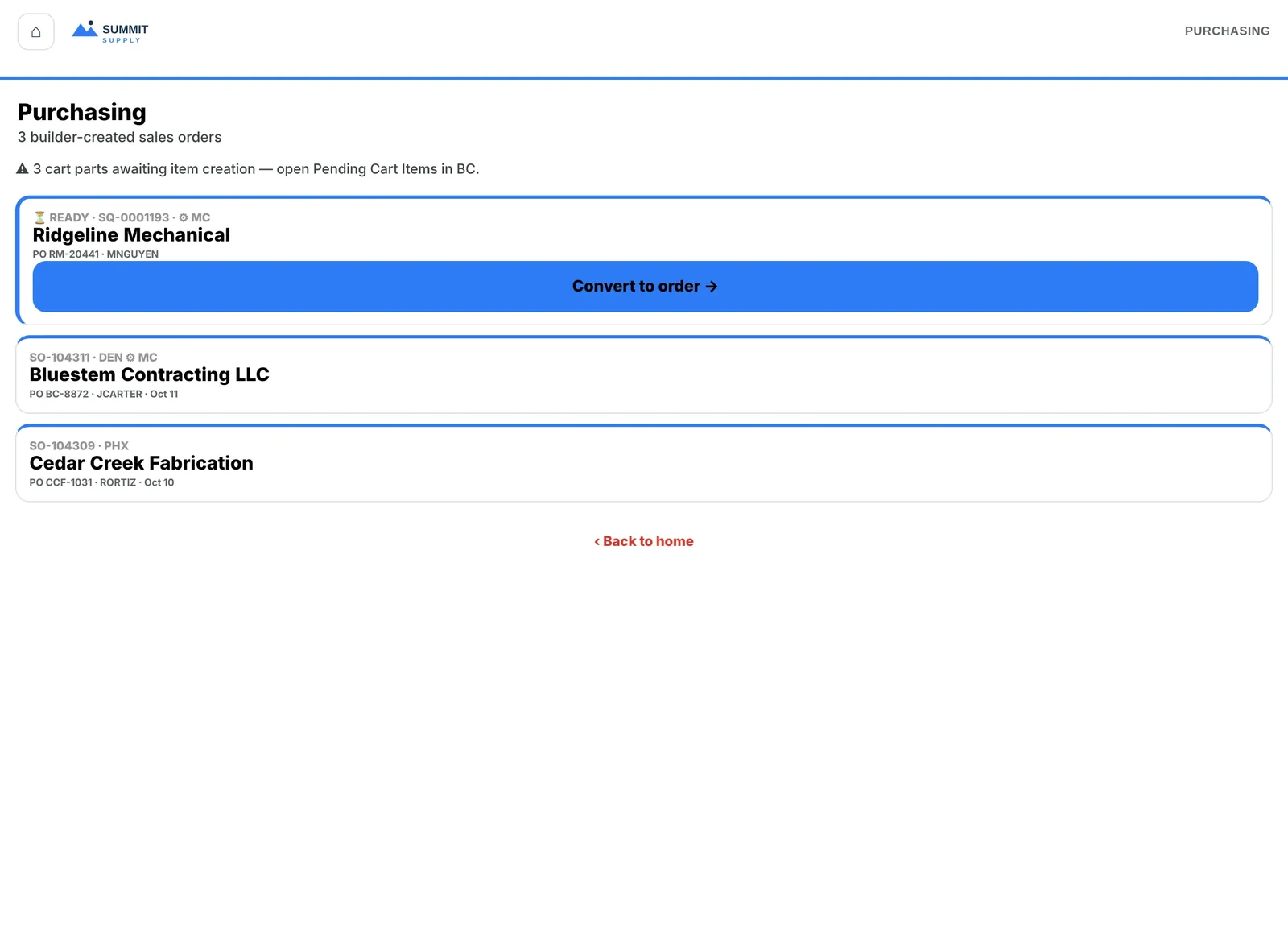
Purchasing, close up: sales orders created by the builder, with a Convert to order button on the one that's ready.
(opens the full screen in a new tab)
PurchasingOrders the builder created.
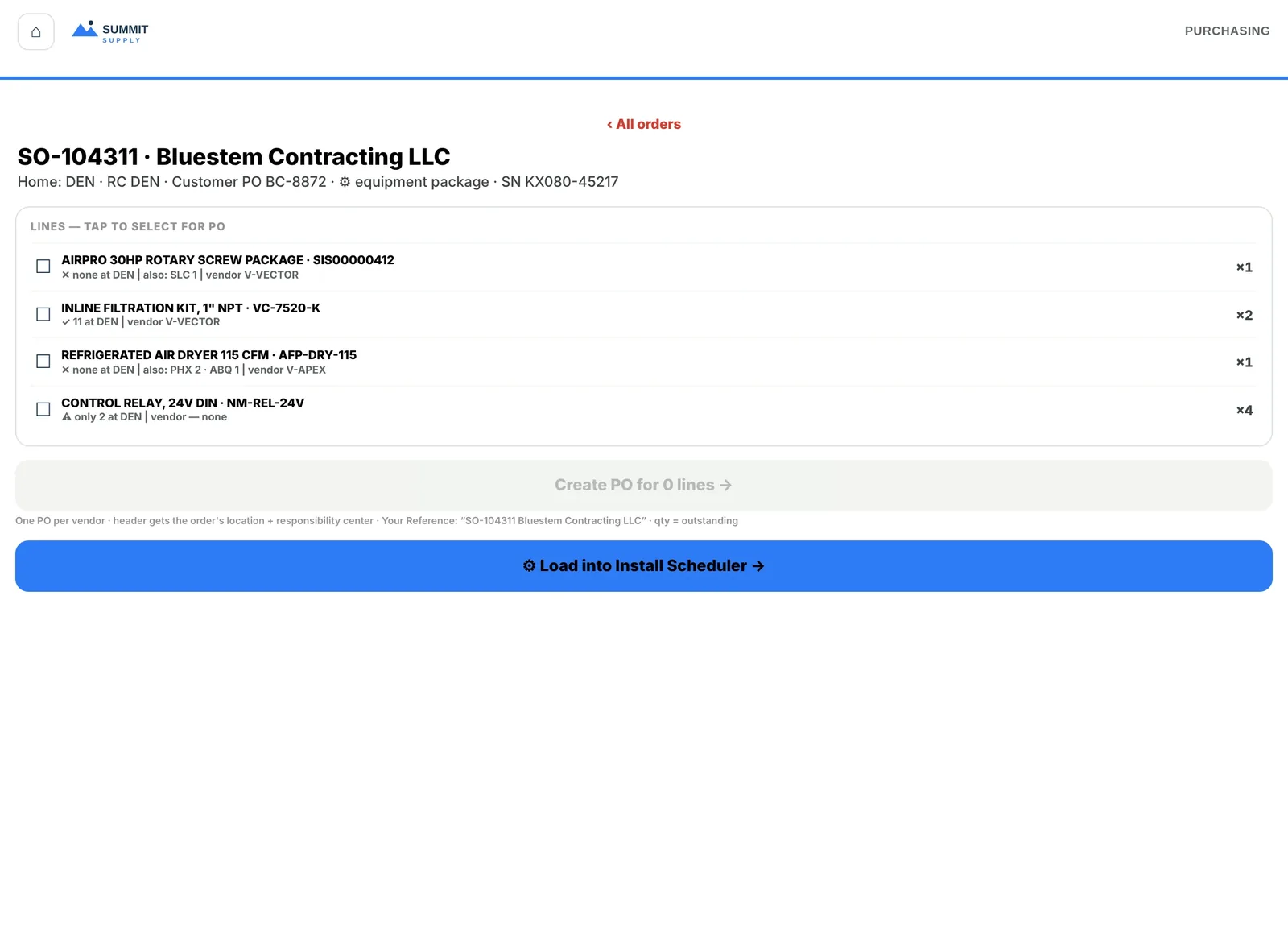
Order detail for purchasing, close up: each line shows stock at the home location and elsewhere, ready to create one purchase order per vendor.
(opens the full screen in a new tab)
Order detailStock by location, one PO per vendor.
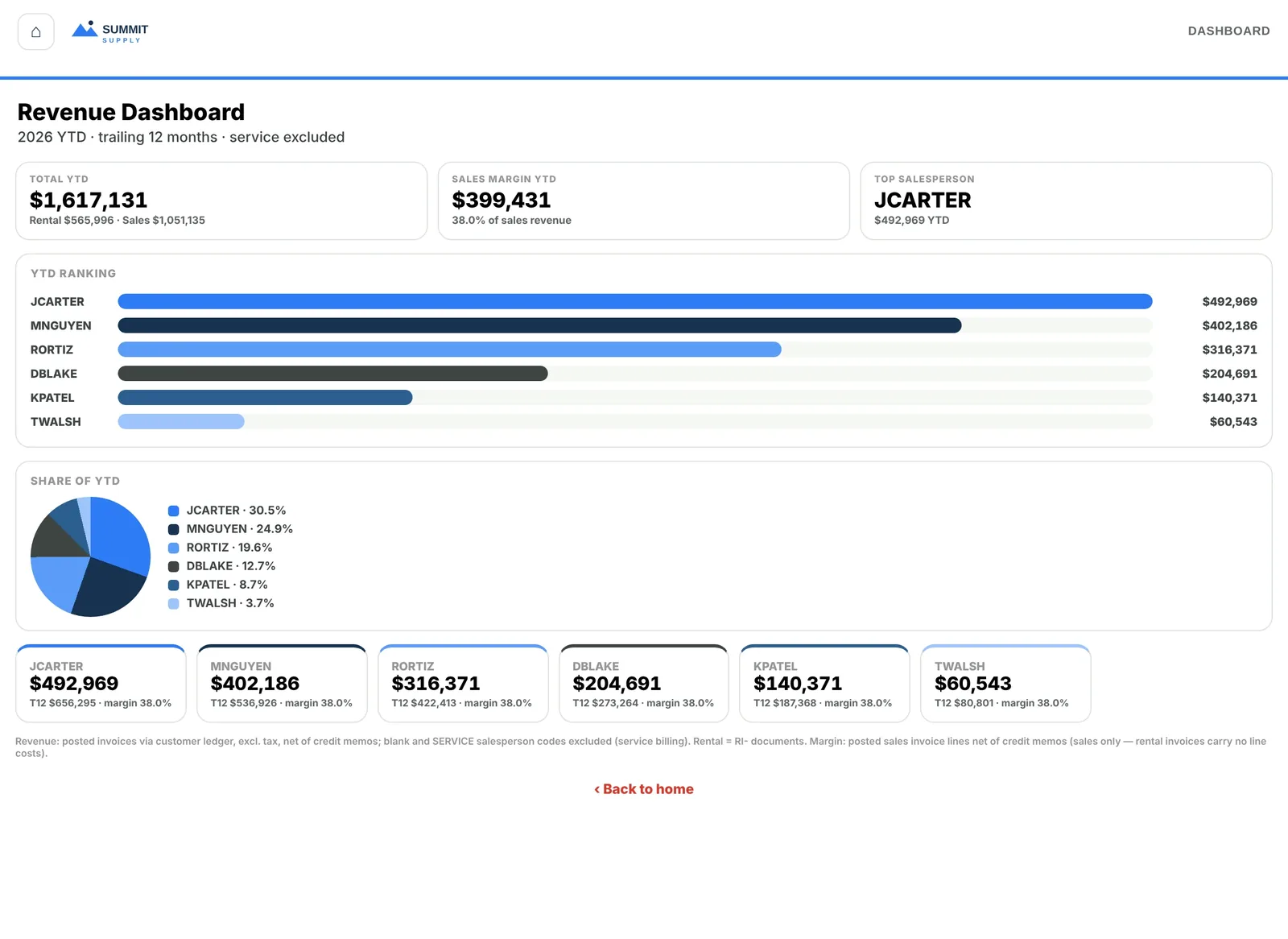
Revenue dashboard, close up: year-to-date revenue and margin, the top salesperson and a ranking by rep.
(opens the full screen in a new tab)
RevenueYear to date, by rep.

06 · Field Service

Every work order on one board, every job on one screen.

Demo: Kestrel Ridge, an equipment service company with several branches.

The problem and what we built

The problem

Standard service pages are lists and cards. There’s no view of which jobs are waiting on parts, on a technician or on review, a technician’s time, notes and parts go in different places, and the invoice doesn’t tell the customer much about what was done.

What we built

A board of work orders by status, filtered by branch and technician. A stepped workspace for each order, with service segments, time entries, complaint, cause and correction, unit history and a running total. A parts center for checking parts out to technicians. Service history per unit, and a service invoice laid out segment by segment.

How it works now

The coordinator works from the board. The technician works through one screen from customer to review. The customer’s invoice shows the complaint, the cause and the fix, with labor and parts under each.
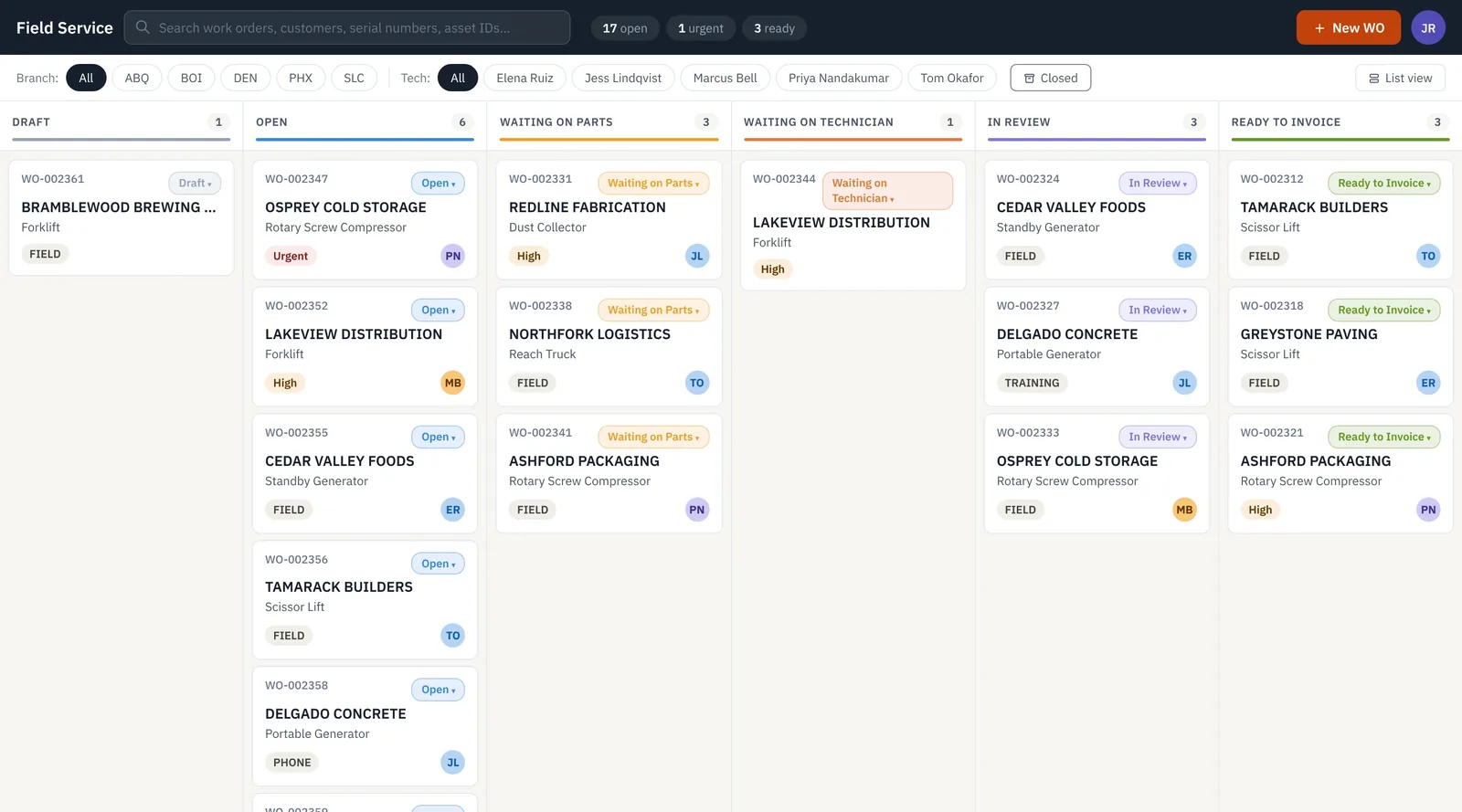
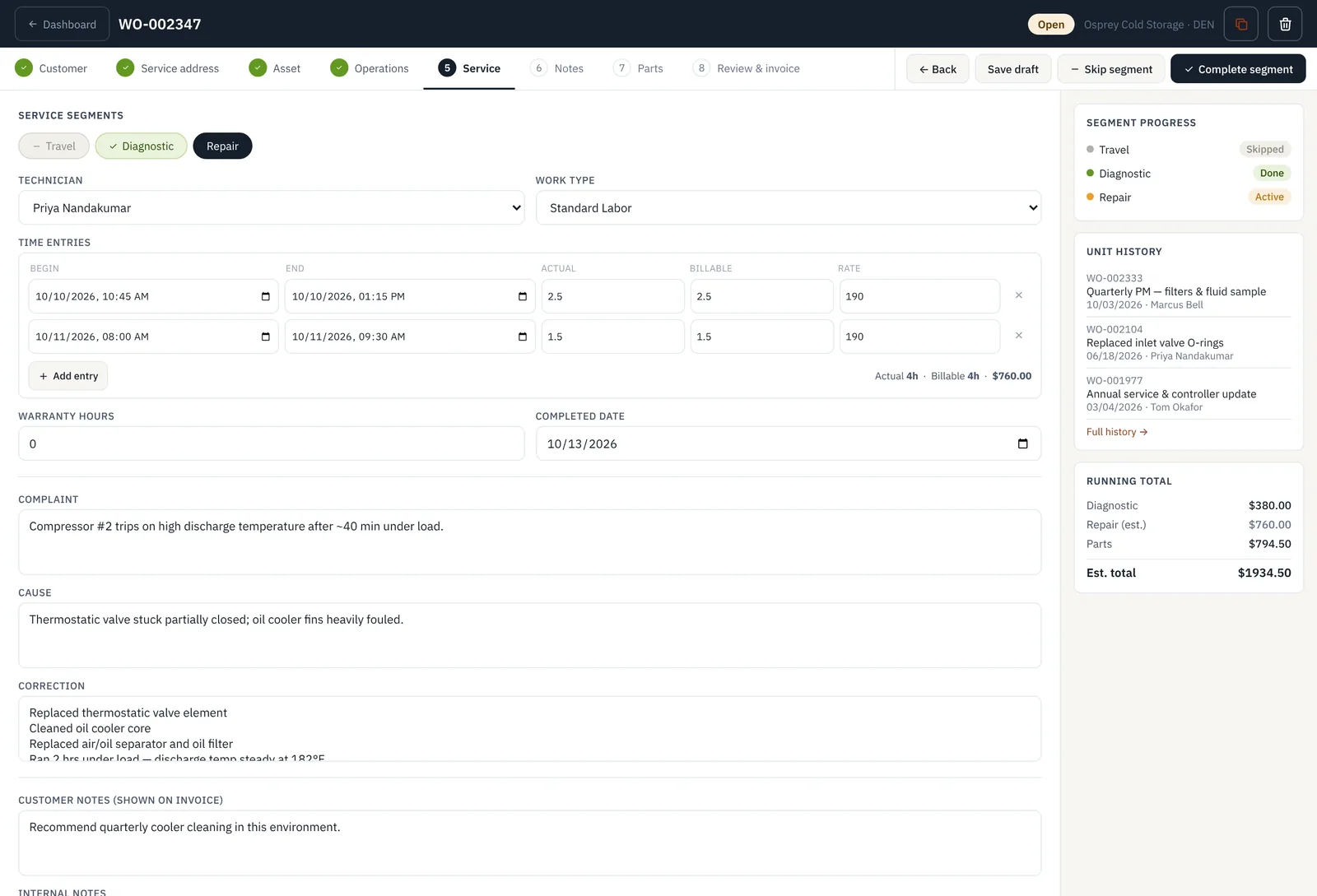
Field Service board: open, urgent and ready counts, branch and technician filters, and work order cards in columns from Draft to Ready to invoice.
(opens the full screen in a new tab)
Work order boardDraft to ready to invoice, by branch and technician.
Work order workspace, close up: steps from customer to review and invoice, service segments, the technician and time entries with billable hours.
(opens the full screen in a new tab)
WorkspaceOne guided screen per work order.
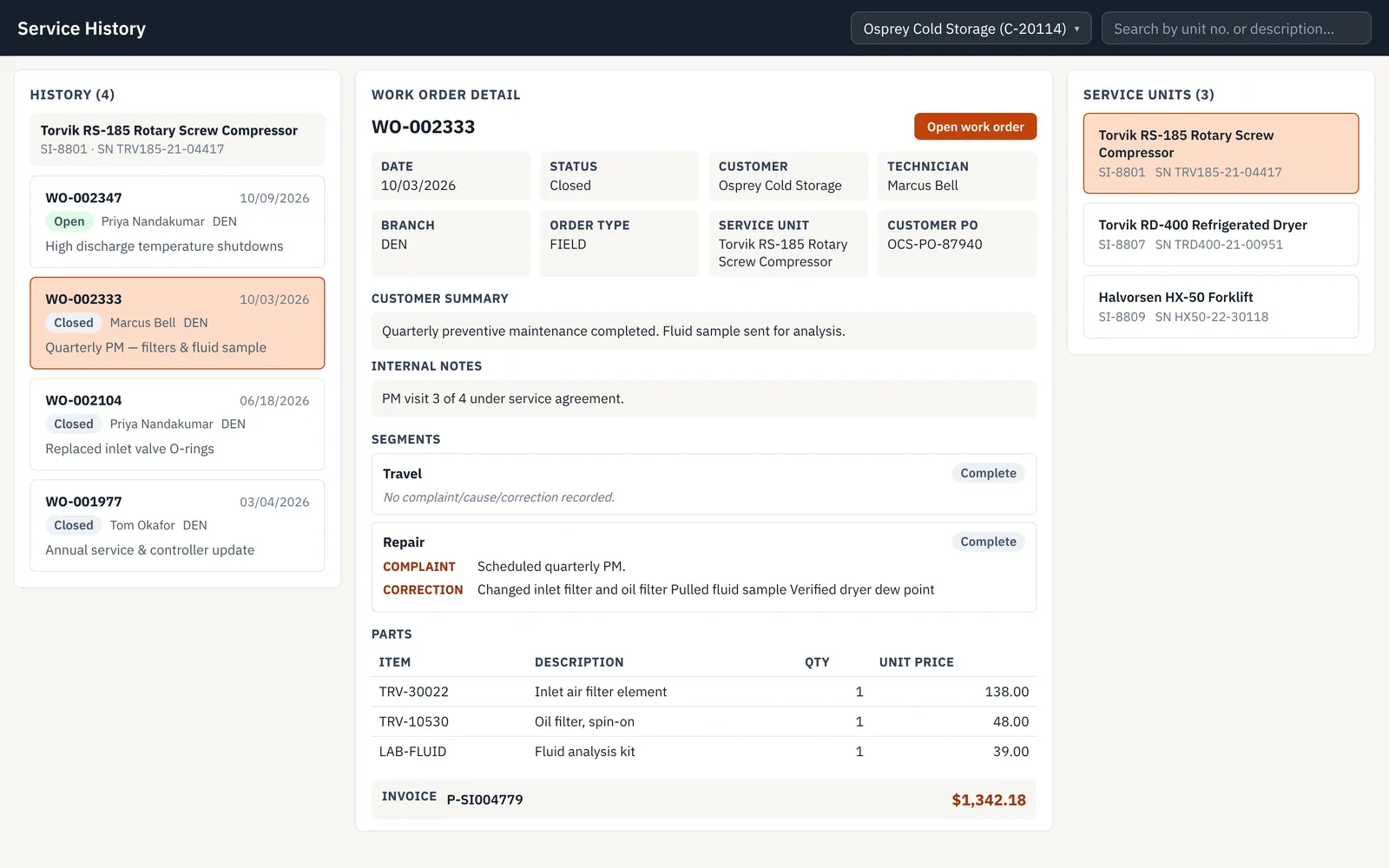
Service history, close up: the detail of one past work order with status, technician, customer summary and segments.
(opens the full screen in a new tab)
Service historyEvery visit to a unit, one click deep.
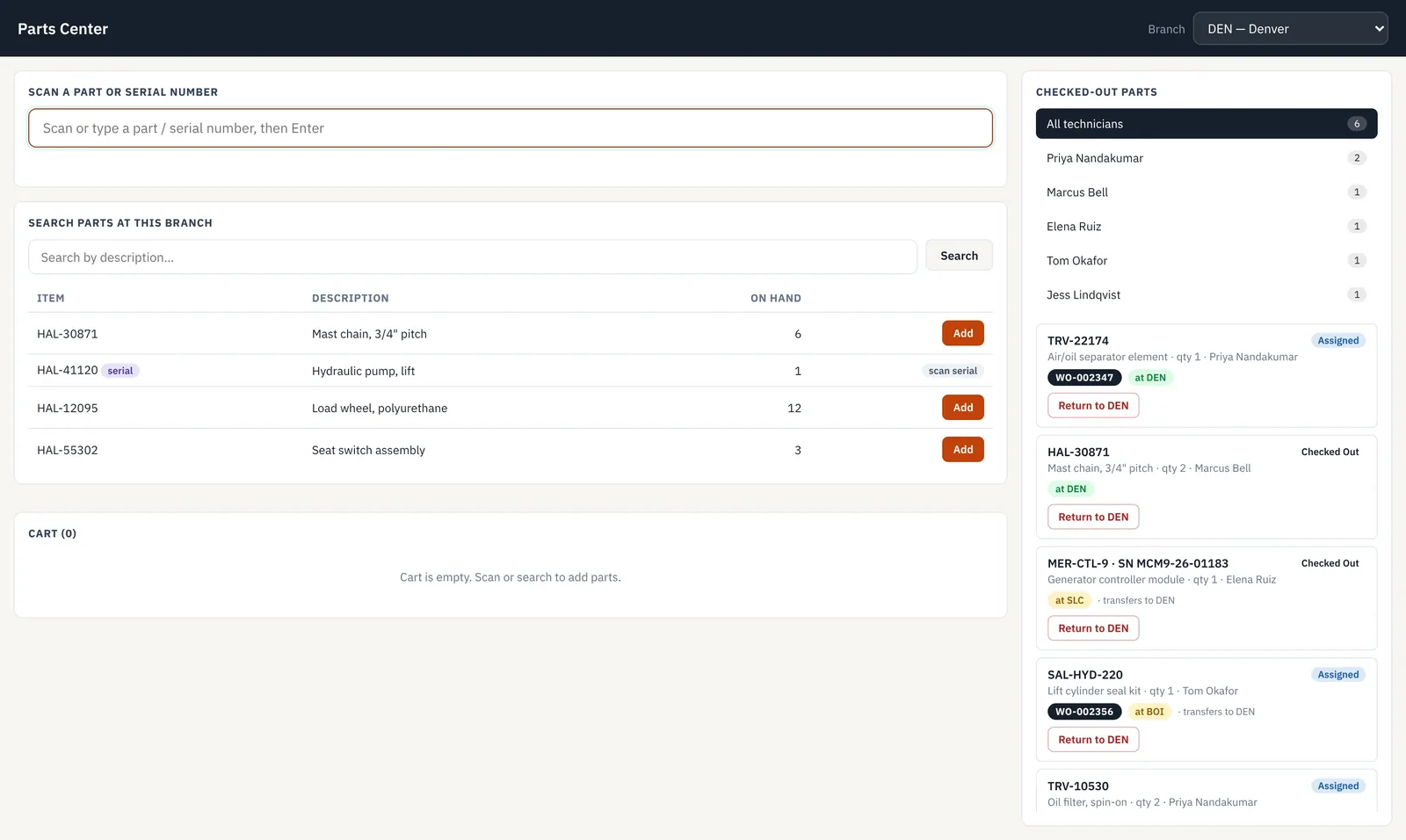
Parts center, close up: parts checked out per technician, each with a Return to branch button.
(opens the full screen in a new tab)
Parts centerWho has which part, and where it goes back to.
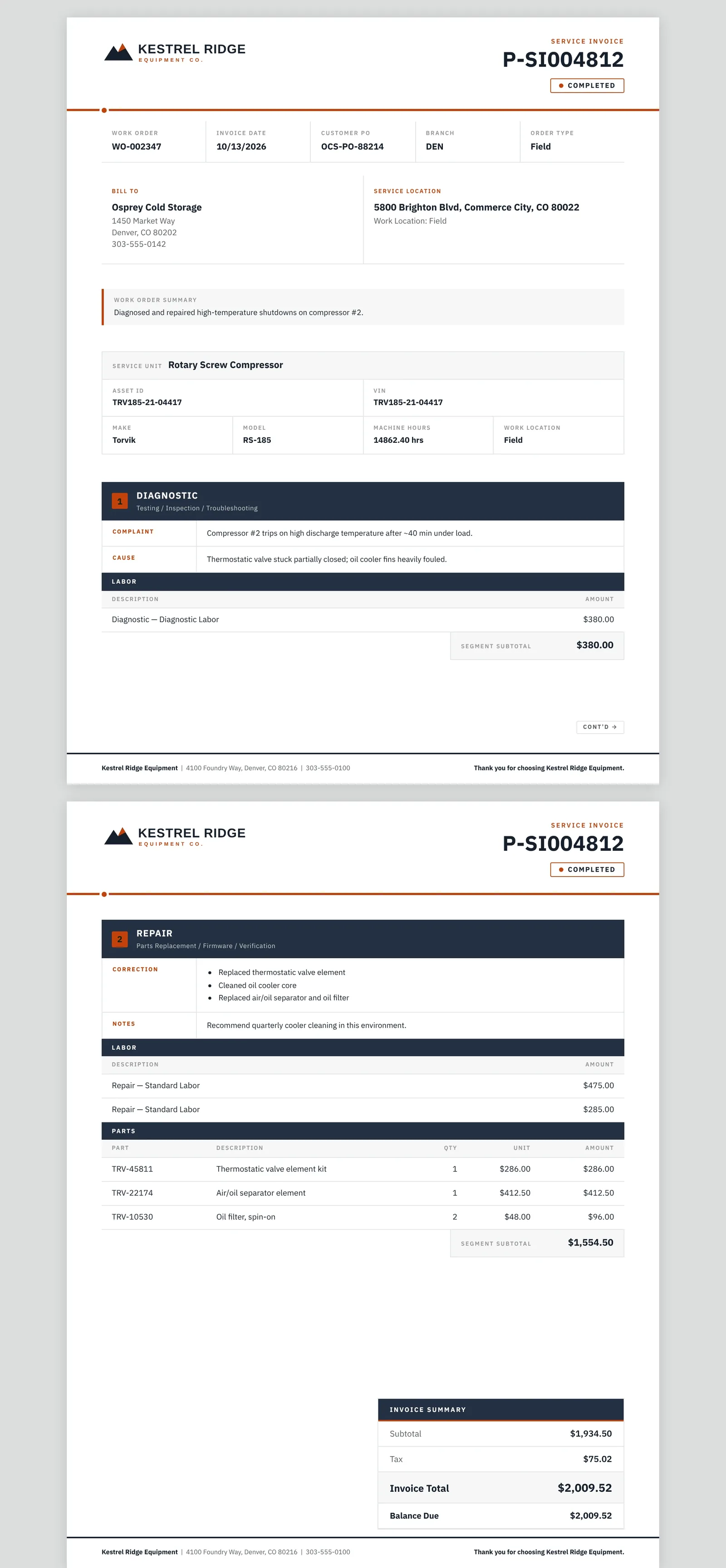
Service invoice, close up: a diagnostic segment with the complaint, the cause and the labor charged for it.
(opens the full screen in a new tab)
Service invoiceComplaint, cause and correction, segment by segment.

07 · Branded document layouts

Invoices that answer the customer’s questions.

Demo: Summit Ridge Equipment Rental, which sells, rents and services equipment.

The problem and what we built

The problem

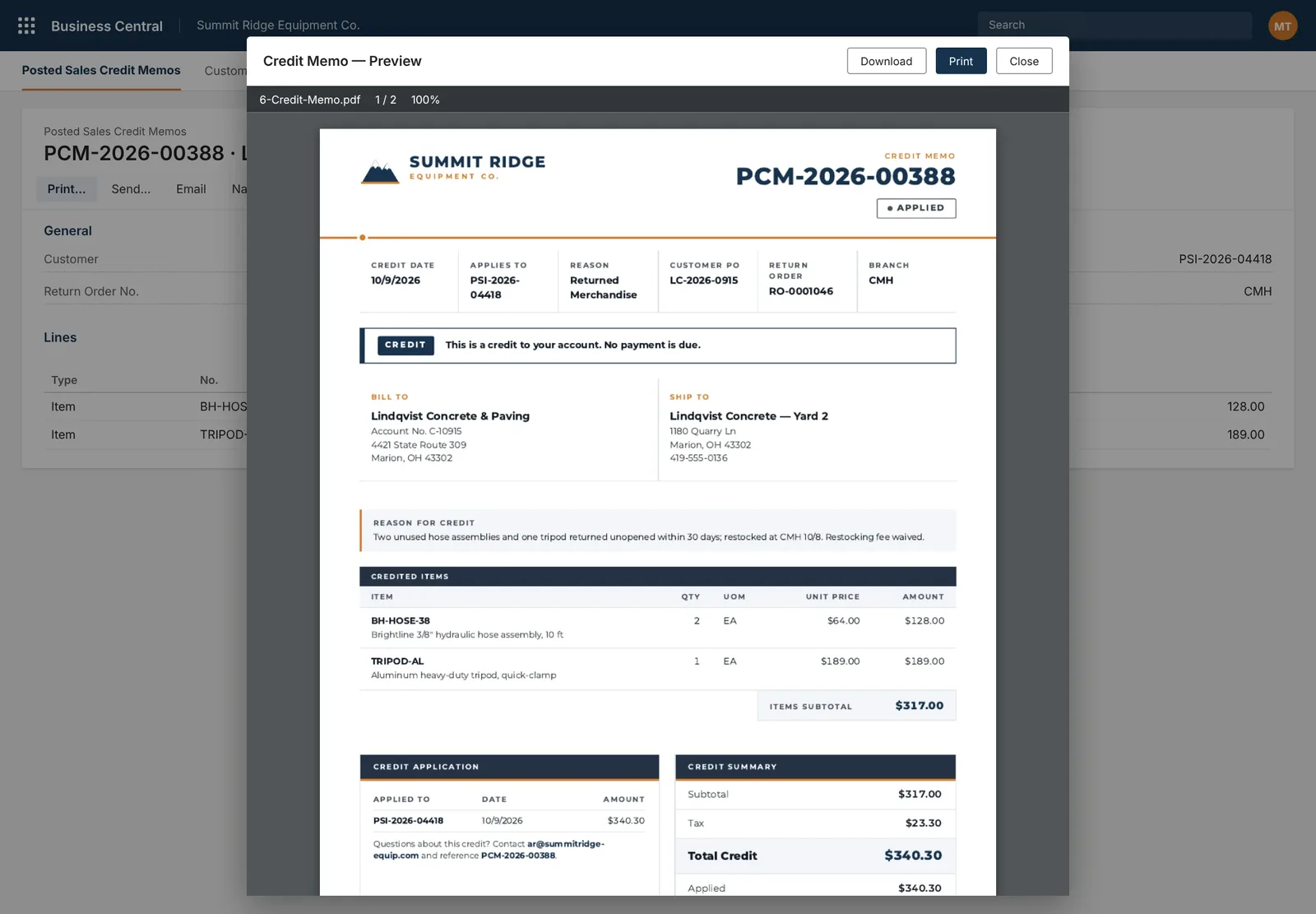
Business Central’s default report layouts are built to suit every company. They don’t carry your brand, and they leave out what customers ask about: serial numbers, rental periods, what a credit was applied to.

What we built

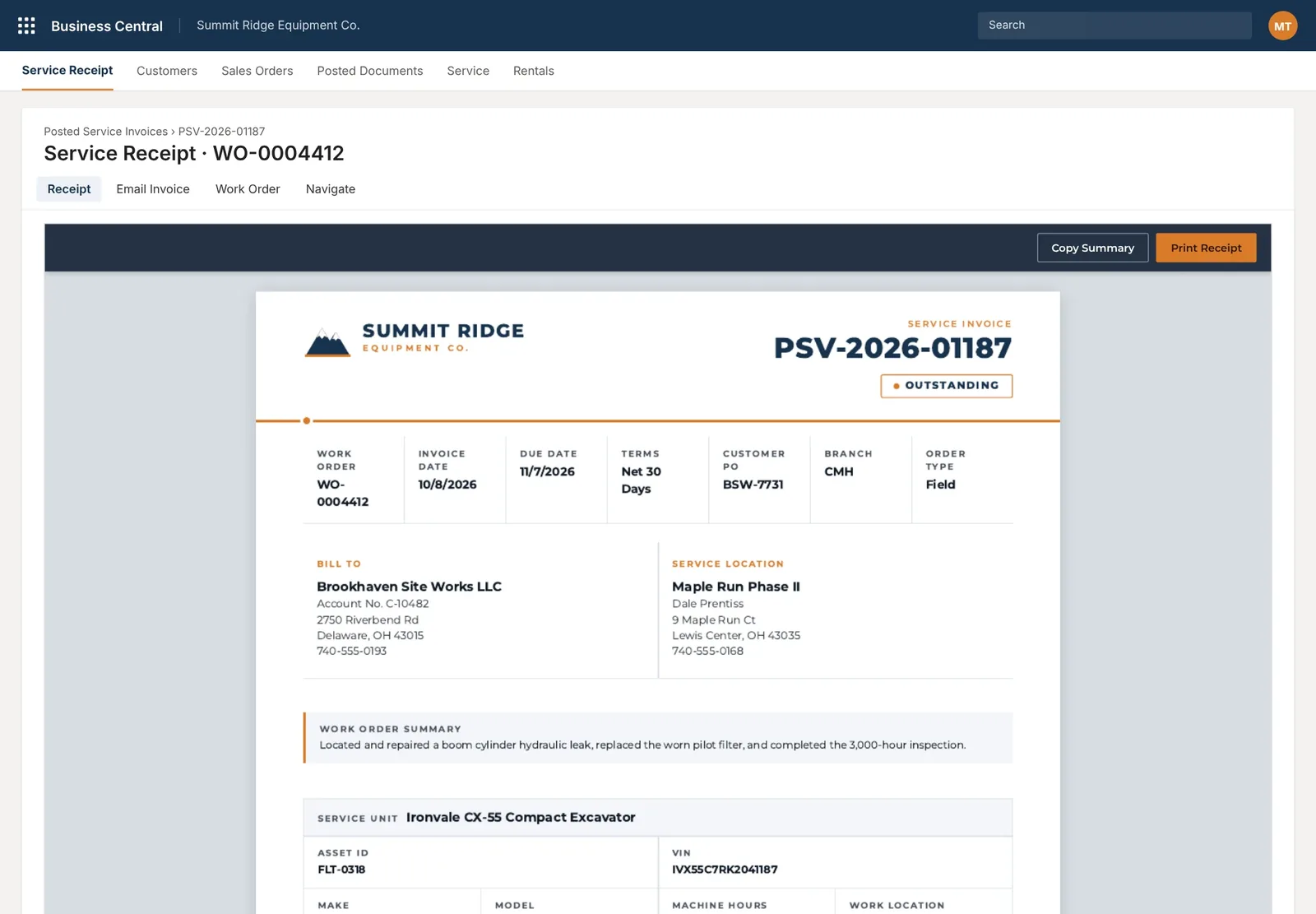
Custom report layouts for sales invoices, rental invoices and credit memos, previewed inside Business Central with download and print. A service receipt viewer on the posted service invoice, with print and copy summary.

How it works now

Sales invoices list the serialized components inside a kit. Rental invoices show the rental period and how each rate was charged. Credit memos state the reason and what they were applied to.
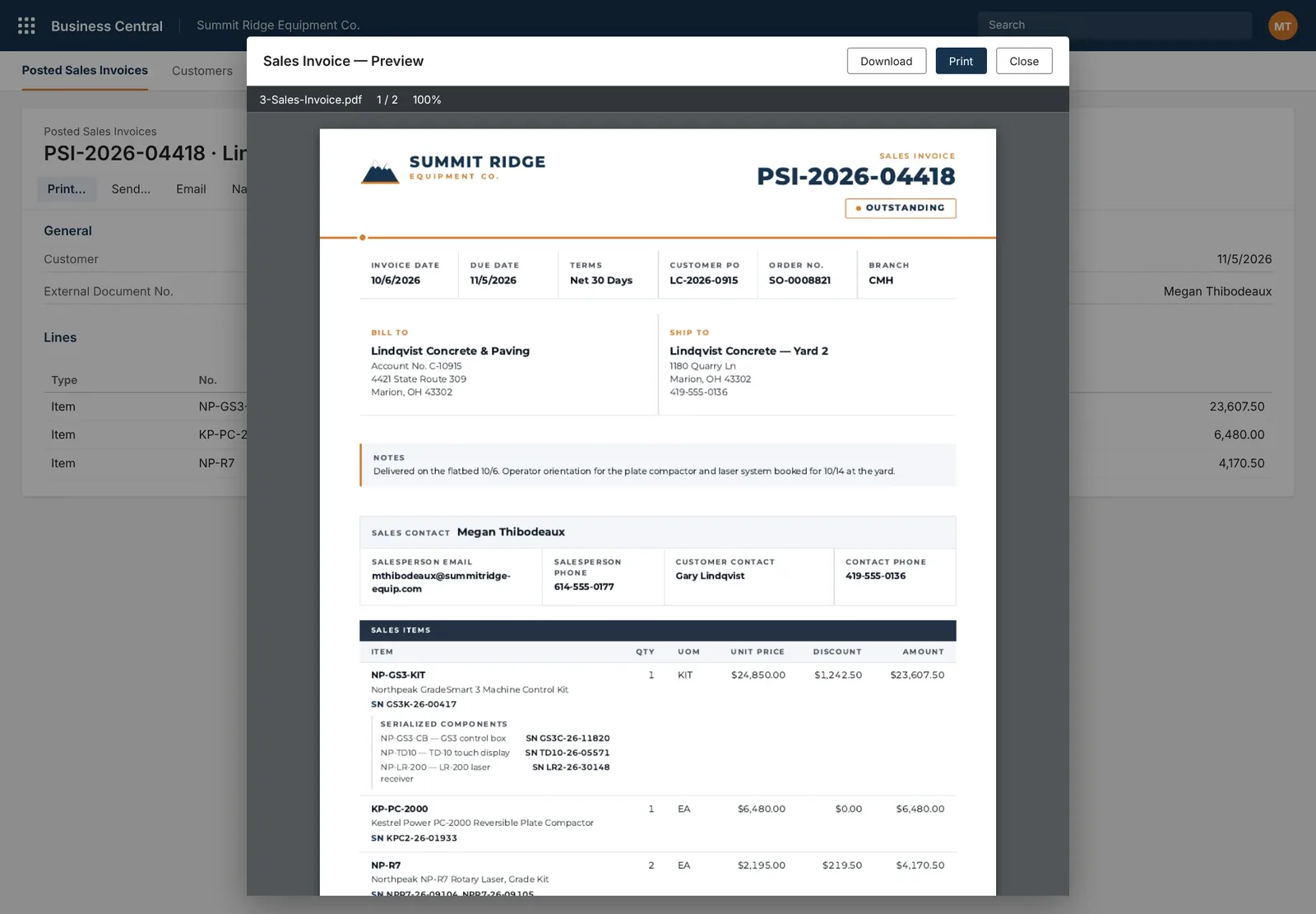
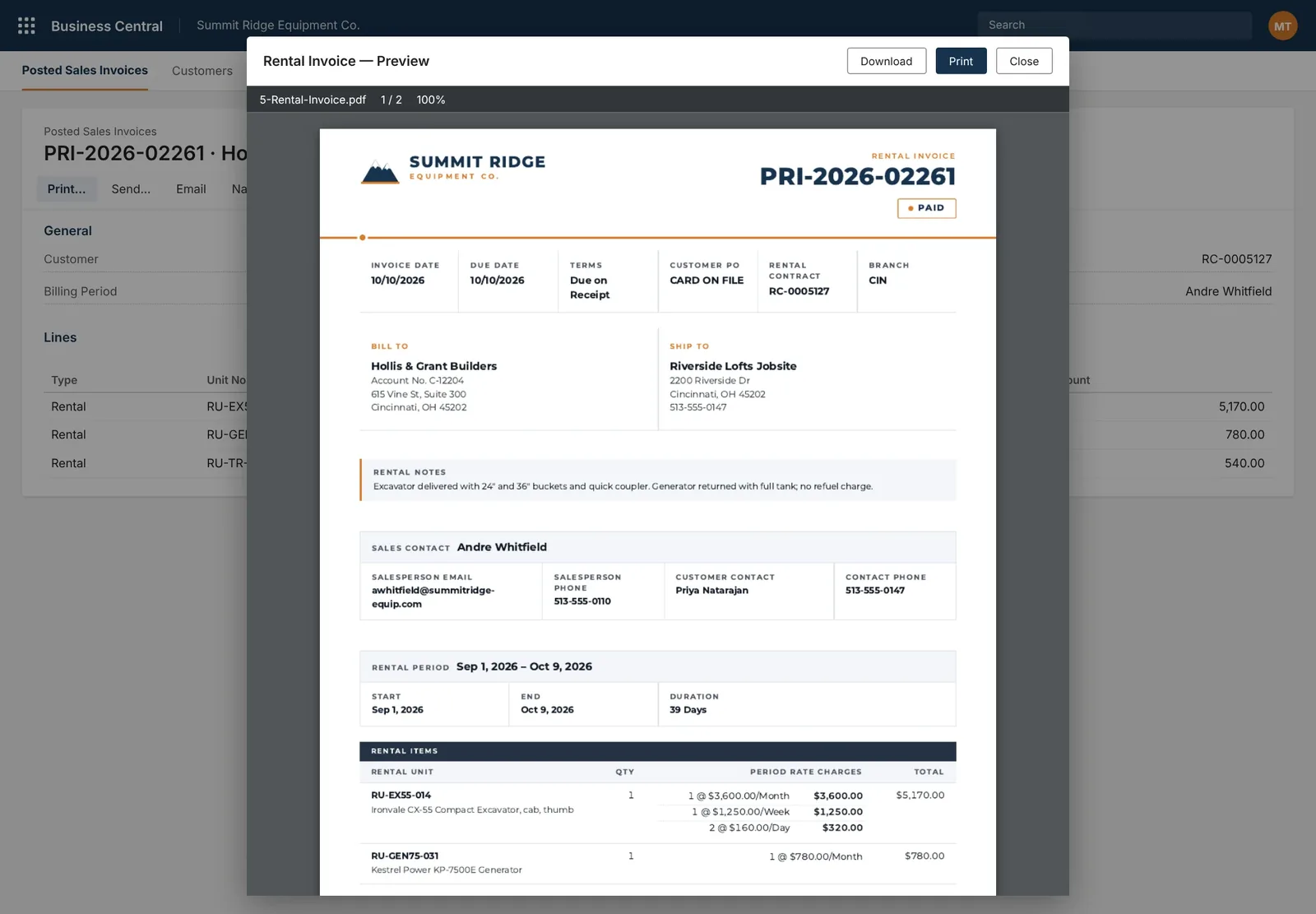
Sales invoice preview, close up: the sales contact, then a kit line with its serialized components and their serial numbers listed under it.
(opens the full screen in a new tab)
Sales invoiceSerialized kit components listed on the invoice.
Rental invoice preview, close up: the rental period with start, end and duration, and each unit charged by month, week and day rates.
(opens the full screen in a new tab)
Rental invoiceRental period and rate breakdown per unit.
Credit memo preview, close up: the invoice it applies to, the reason, a this-is-a-credit banner and the reason for credit in words.
(opens the full screen in a new tab)
Credit memoWhy the credit, and where it was applied.
Service receipt viewer, close up: Copy summary and Print receipt buttons above the branded service invoice on the posted invoice page.
(opens the full screen in a new tab)
Service receipt viewerThe receipt on the page, ready to print.

Free Business Central UX review

Send us the screen your team hates most.

In 30 minutes we count the steps your team takes today and sketch the same task as one screen, on desktop and phone. You keep the written summary. No slides, no obligation.