



Home / Control add-ins
Plain-English explainer
Business Central control add-ins, explained.
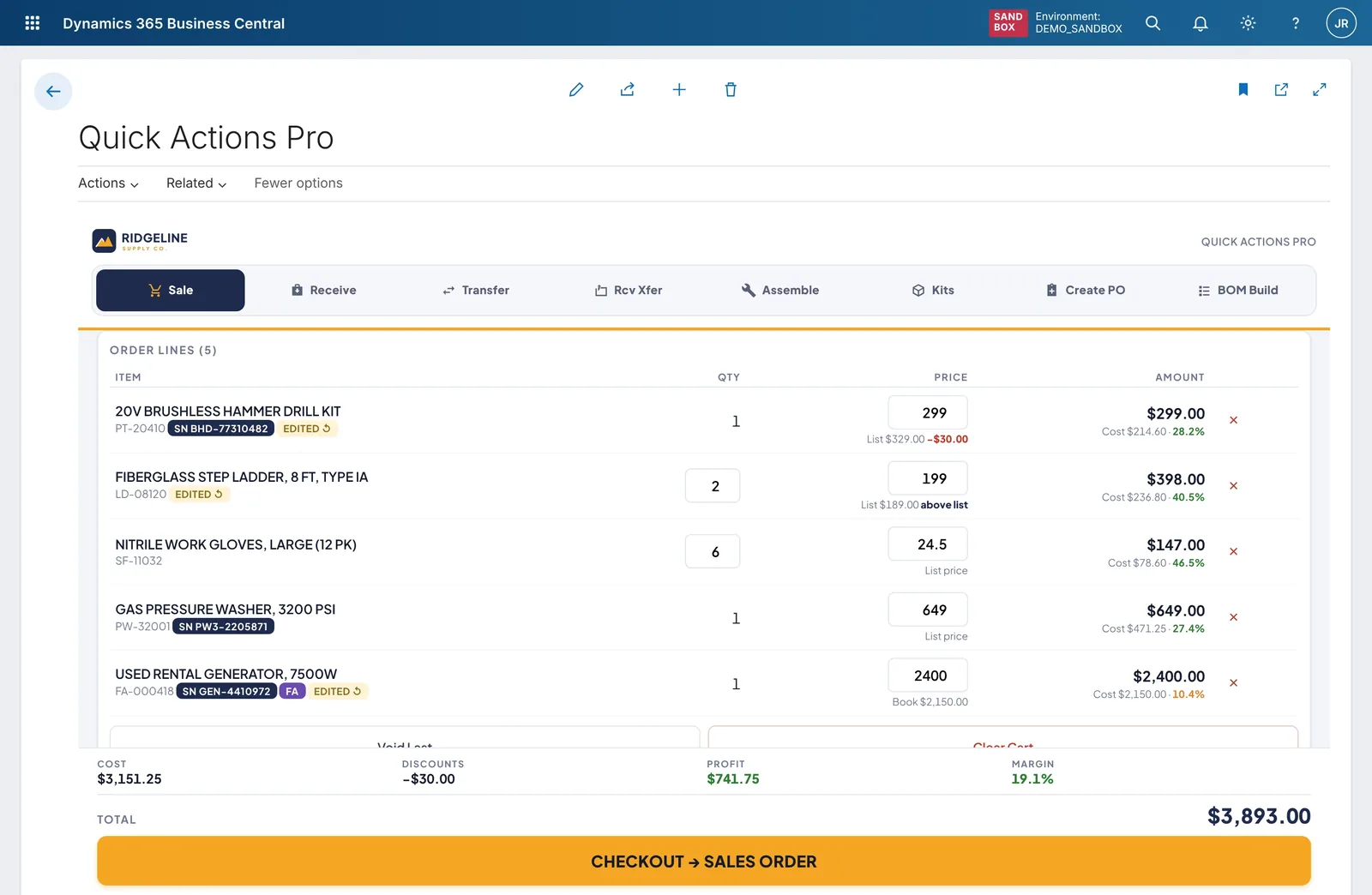
A Business Central control add-in is a custom-built screen that sits inside a normal Business Central page. Same login, same data, same permissions. It just looks and works the way your task needs, instead of the way a generic form does. Middlecut designs, builds and supports Business Central control add-ins for companies and partners.
The short version
A custom screen inside the system you already pay for.
Business Central gives every company the same forms, lists and grids. A control add-in replaces the part of the page your people struggle with and leaves the rest exactly as it is. The screen is the friendly front desk. The rules, approvals and postings still run in the back office, in AL code, Business Central’s own programming language.
Business Central page
Control add-in
Your custom screen
HTML, CSS and JavaScript. Big buttons, a scan field, a drag-and-drop board, built for a phone in one hand as well as a desk.
AL code in your extension
Business Central’s rules
- Checks the user’s permissions
- Validates with standard logic
- Posts with standard routines
Your Business Central data
Nothing new to reconcile
The same tables, ledger entries, reports and change history as before.
This is not a workaround. Control add-ins are a documented part of Business Central’s developer platform, and Microsoft uses the same mechanism for its own Power BI embedding, business charts and, since version 24, camera barcode scanning. Source: Microsoft Learn, control add-in object.
How it works
The screen is new. The rules underneath are Business Central‘s.
A Business Central page, written in AL, hosts a screen built in HTML and JavaScript. The screen never writes to your data directly. Every action goes back through Business Central’s own code.
Receiving one serial-numbered item, step by step
An example of what happens behind a single scan on a phone at the dock.
The screen captures the scan
The add-in reads the barcode and shows the matching purchase order line straight away.
It tells Business Central what happened
The add-in raises an event, a short message to the AL code: this serial was scanned for this line.
Business Central applies its rules
AL checks the user may receive goods, validates the serial number and updates the line through standard code.
The screen updates
AL sends the updated line back as data and the add-in ticks it off. Nothing on the screen is trusted until Business Central confirms it.
Posting is standard posting
When the receipt is posted, Business Central’s own posting routine runs. Your ledger entries, permissions and audit trail are the ones you already rely on.
When to use one
A control add-in is the right tool for some jobs, not all of them.
We’d rather point you to a cheaper option than build something you don’t need. Here is how we decide.
Good fit
- High-volume, repetitive work done all day inside Business Central: receiving, transfers, counter sales, picking.
- Work done on a phone or tablet, where standard pages show lists as tiles, hide most actions and won’t open worksheets at all.
- Anything visual: a planning board, a dispatch board, a dashboard, a signature pad.
- Tasks that today take several pages and many fields, where one screen and one button would do.
Something else is better
- A standard page when the job is occasional setup or a simple card. Personalizing the page, or a small AL change, costs less.
- Power Apps or Power Automate for workflows across Microsoft 365 and other systems, or for people who don’t have a Business Central license.
- An AppSource app (Microsoft’s marketplace of ready-made Business Central apps) when one already does what you need. A product sold to thousands is usually cheaper than a custom build.
- A native app with offline sync when people work for hours without a signal. Control add-ins need a connection.
Online only. The Business Central web and mobile apps are online clients, and every action in an add-in is a round trip to the server. We can make a screen tolerant of patchy Wi-Fi by queuing and retrying, but we don’t promise offline working. Source: Microsoft Learn, mobile app FAQ.
Heavy add-ins get throttled. Since 2022 release wave 1, Business Central detects slow or unhealthy add-ins, warns the user, then throttles and finally rejects their calls. We build to Microsoft’s performance guidance and send data in small pieces. Source: Microsoft Learn, control add-in resiliency.
Side by side
Control add-in, standard page or Power Apps.
The same task can be built three ways. The differences that matter to a business are where people work, what it costs per user and what happens at upgrade time.
| Feature | Control add-in | Standard page | Power Apps |
|---|---|---|---|
| Where people work | Inside Business Central, on the web or in the phone and tablet app | Inside Business Central | A separate app or link, or a tile embedded in another tool |
| Extra Microsoft license | None. Runs under each user’s existing Business Central license | None | Often needed. Power Apps Premium is $20 per user per month, rising to $22 for terms starting on or after January 1, 20271 |
| Screen design | Anything a web page can do: boards, drag and drop, signatures, maps | Fixed forms, lists and grids, with user personalization | Canvas app controls and custom components |
| Business rules and posting | Business Central’s own AL code, permissions and posting | Business Central’s own AL code, permissions and posting | Through the Business Central connector, throttled at 300 calls per 60 seconds2 |
| On a phone | Can be designed for touch and adapt to phone, tablet or desktop | Works with limits: lists become tiles, no multi-select, worksheets don’t open3 | Suited to quick mobile forms |
| Offline | No | No | Canvas apps have offline options |
| Upgrades | Ships inside your Business Central extension and is tested with it | Maintained by Microsoft | A separate lifecycle to manage, plus connector changes |
| Who builds it | Developers who know AL and JavaScript | Microsoft, plus AL developers for changes | Makers and citizen developers, for simpler apps |
| Best for | Frequent, complex work inside Business Central | Occasional tasks and setup | Workflows across systems and users without Business Central |
- Microsoft list price on annual terms, reported September 2026 by Topedia. List prices change; check Microsoft’s current price before you budget. Business Central licenses include limited Power Apps rights within Business Central itself; apps beyond that often require additional per-user licenses.
- Microsoft Learn, Business Central connector reference.
- Microsoft Learn, mobile app differences and limitations, updated August 2026.
Control add-in FAQ
Straight answers to what buyers ask.
If yours isn’t here, ask it on a free UX review call.
Will a control add-in survive Business Central updates?
It ships inside a normal Business Central extension, so it goes through the same update process as any other extension. The JavaScript side talks to Business Central through a small set of functions that have stayed stable for years; in our experience, most upgrade risk sits in the AL code, which automated tests check against Microsoft’s preview releases before your update.
Our support plans cover this testing for every release wave.
Does it work in the Business Central phone app?
Yes. The Business Central app for iOS and Android shows control add-ins, and an add-in can tell whether it is on a phone, tablet or desktop and whether the person is using touch or a mouse. We design and test each screen for the devices your team actually uses.
Does it work offline?
No. The Business Central apps are online clients, and every action in an add-in goes to the server. We can make a screen cope with patchy Wi-Fi by queuing and retrying, but if your people work for hours without a signal, a native app with offline sync is the better fit, and we’ll say so.
Who owns the code?
You do. The source code for everything we build for you lives in a repository you can access, with documentation, so another developer could pick it up. You are never locked in to us.
Can Copilot and Business Central agents still work with it?
Business Central’s agents work through pages, fields and actions, and nothing in Microsoft’s documentation describes them working inside a custom add-in. So we keep every business operation in standard AL code and actions. Agents, Power Automate and integrations use that same logic; the add-in is only the friendlier screen for people.
Is it on AppSource?
A custom add-in is usually delivered as a per-tenant extension: built for your company and installed only in your Business Central environment, not listed on AppSource, Microsoft’s public app marketplace. If an AppSource app already does what you need, buying it is usually cheaper than a custom build.
Which Business Central versions and deployments do you support?
Business Central online is our default. We also build for on-premises installations on a supported version; tell us your version and we’ll confirm.
Does it need extra licenses?
No extra Microsoft license. A control add-in runs under each user’s existing Business Central license and permissions. That is the main cost difference from Power Apps, where Premium is a per-user license on top of Business Central.
Will it slow Business Central down?
Not if it is built properly. Business Central watches add-ins and warns, throttles or blocks ones that misbehave. We follow Microsoft’s performance guidance, send data in small pieces and can log add-in errors to Application Insights, Microsoft’s monitoring service, so problems can show up before your users report them.
Free Business Central UX review
Send us the screen your team hates most.
In 30 minutes we count the steps your team takes today and sketch the same task as one screen, on desktop and phone. You keep the written summary. No slides, no obligation.